
Film video and supporting scenes
Footage to cover a stretch of the video: city, nature, objects in motion.
What to describe: Place, time of day, motion and camera.
AI video creation
Describe a scene or start from a photo. Pick a direction and take the video to the VDClip editor.
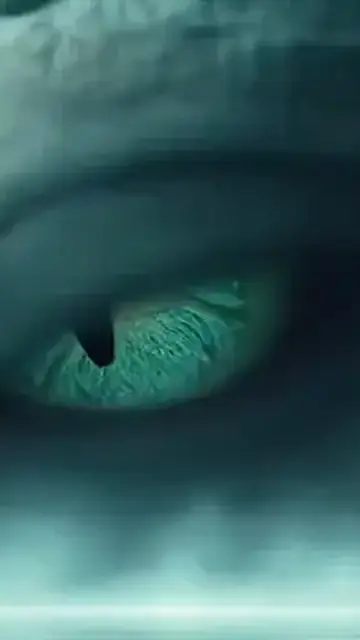
the mist parts and reveals a dragon's eye, camera very close
Illustrative examples, the same ones as on the home page. Each new generation can vary. Start free, with credits on the free account.
AI video examples
The same prompt and the same clip stay linked. Switch the example to see how subject, action and camera change together.
Illustrative examples: the clip shown serves only as a demonstration of the prompt next to it.
Start with the subject and add the action, the camera, the setting and the light. The clearer the focus, the easier it is to adjust.
Pick an example, copy the prompt and change what needs to reflect your scene, your product or your photo.
Open Video mode, generate the clip and continue the idea in the VDClip editor.
What it is for
Supporting scenes, short videos, photos in motion and products call for different descriptions. See what to describe in each case.
Footage to cover a stretch of the video: city, nature, objects in motion.
What to describe: Place, time of day, motion and camera.
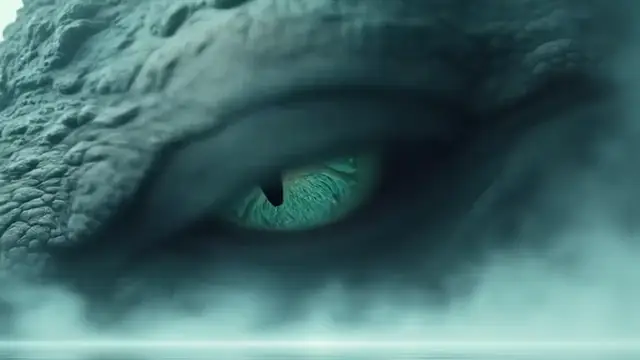
A high-impact scene to open an ad, a post or a clip, like the dragon emerging from the mist.
What to describe: A strong subject, an action and the framing.
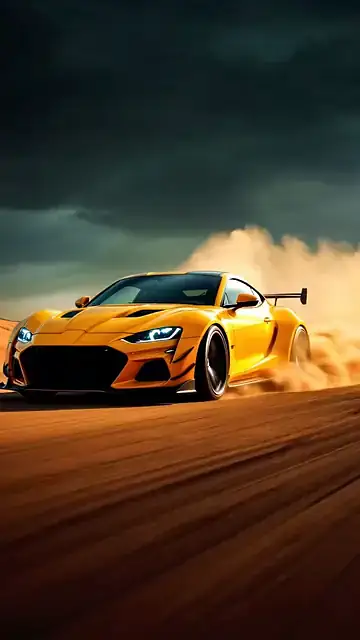
Bring a still image to life: the water flows, the car moves forward, the gaze turns to the camera.
What to describe: What in the photo should move and what stays still.
Show an object entering the scene, spinning or shining, with defined light and background.
What to describe: Object, type of motion, background and light.
Start with a direction and rewrite what needs to reflect your scene. Describe what appears, what moves and where the camera is.
Prompts from the home page
drone over the city at sunset
barista pouring coffee in close-up
Suggestions to adapt
waves breaking on a deserted beach at dawn, low camera and golden light
sneaker slowly spinning on a dark pedestal, side light and black background
street wet with rain at night, neon reflections on the asphalt and a camera following a bicycle
Pick a prompt, adapt the text and create the video in the studio.
These are text suggestions to adapt, with no promise of a specific result. The clips on this page stay linked only to the prompts shown next to them, and each new generation can vary.
AI photo to video
On the home page, a still photo gains motion from a short prompt. See the three examples with the source photo, the prompt and the clip.
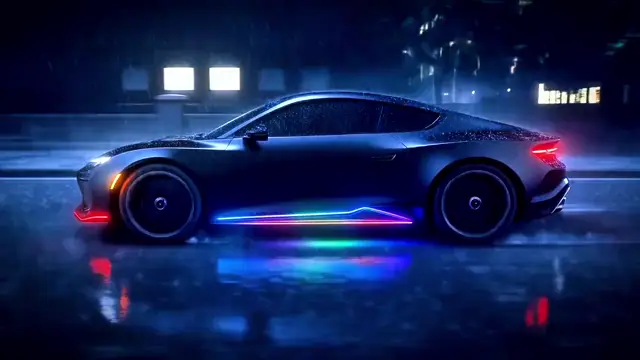
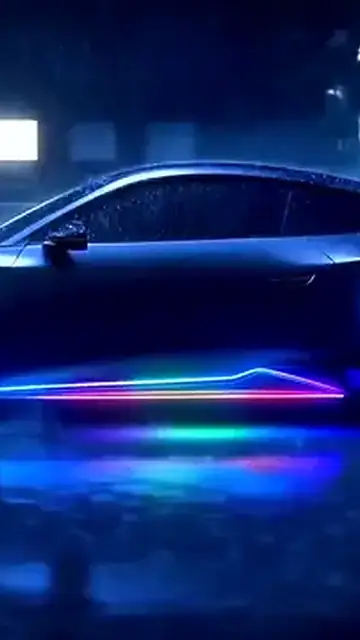
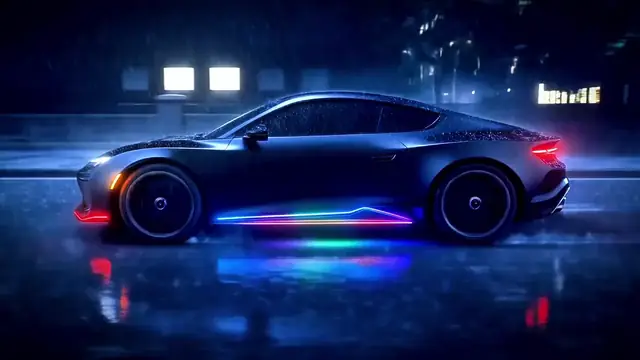
make the car move through the rain, neon reflections sliding over the asphalt
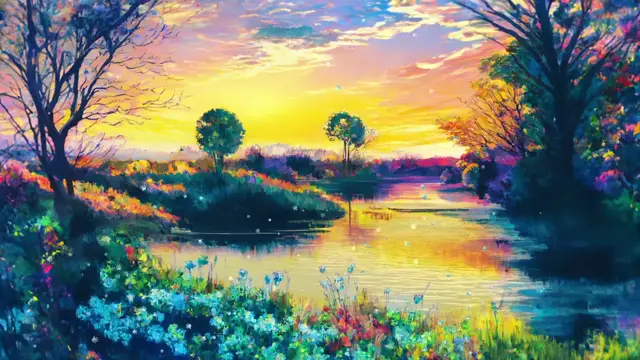
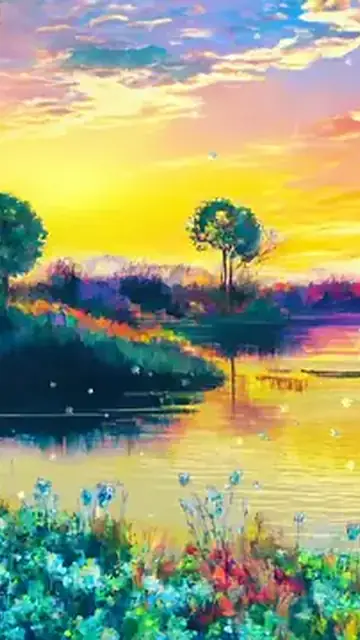
bring the painting to life: the water flows and the trees sway in the wind
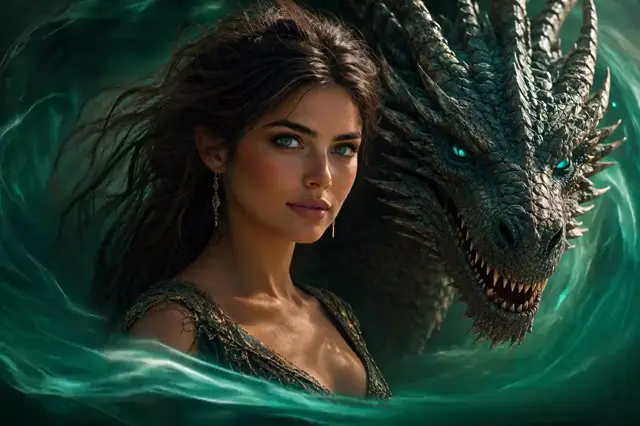
the dragon moves closer and she looks at the camera with a smile
Illustrative examples from the home page. Each new generation can vary.
How to write video prompts
The video prompts on this page follow the same logic: a few pieces, each with one job. Pick an example and see how it is built.
Full prompt “the mist parts and reveals a dragon's eye, camera very close”
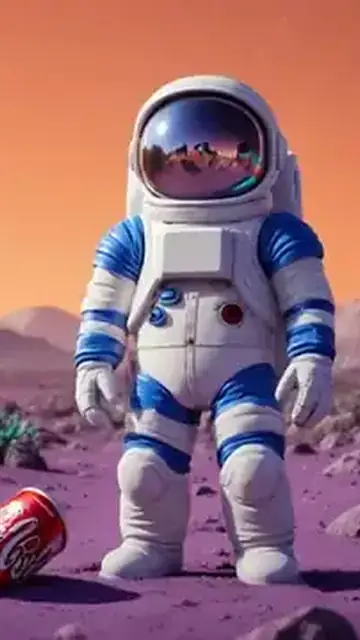
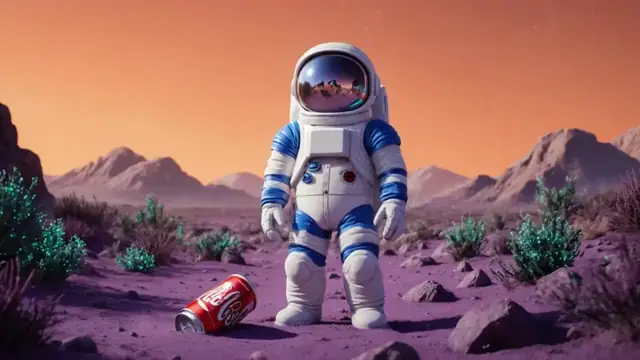
Full prompt “astronaut crouching on a purple planet, sunset light”
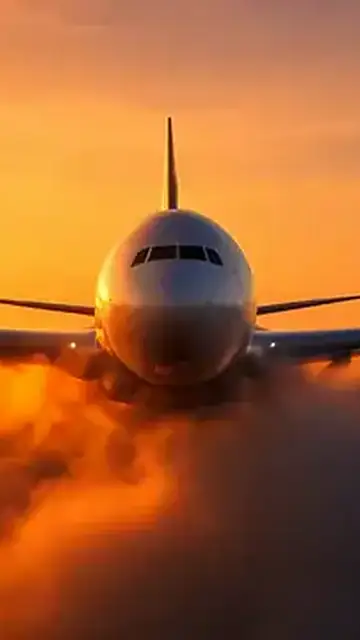
Full prompt “plane crossing golden clouds at sunset, front view”
Splitting a prompt into pieces is an editorial reading of the text. The generator receives the whole prompt; to adjust a result, change one piece at a time and keep the others.
Practical help
See where to start before taking your idea to the studio.
It is a tool where you describe in text the scene you want to see, or start from a photo, and the AI creates the video from that description. In VDClip, this prompt lives in the studio’s Video mode, next to clips, image and sound.
Open video creation in VDClip and describe the subject, what it does and how the camera should show the scene.
You can start with supporting scenes, short videos for social media, photos in motion and products. The examples on this page help structure the prompt, but they do not guarantee a specific result.
The home page shows the idea of giving motion to a photo with a short prompt, as in the three examples on this page. Check in the studio how uploading your photo works before generating.
Start with the main subject and add the action, the camera, the setting and the light. If there are many elements, say which one should get the most attention.
Say in simple words where the camera is and how it shows the scene, as in the examples on this page: “camera very close” and “front view”. Avoid asking for movements that contradict each other.
They are illustrative examples, the same ones that appear on the home page, with the prompt that goes with each clip. They show how a prompt is organized, and a new generation with the same text can give a different result.
You can describe scenes for these uses. A product video shows the object, the motion and the light. An ad video calls for a strong subject and clear framing. For film, describe supporting scenes and short shots. The examples on this page are a starting point, and the result can vary.
Clips turn a long video into pieces ready to publish. The video generator creates a new scene from your prompt. Both live in the same studio.
The studio is designed to connect creation to the VDClip editing flow. The availability of options may vary in the product.
Rewrite the prompt making the subject and the action clear, and change one piece at a time. The “Read a prompt from the inside” section shows how a prompt is built.
VDClip has a free account with credits for you to get started. The cost of each video can vary depending on the model and the options chosen in the product. Check the conditions available in the studio and on the pricing page before generating.
Start in Video mode and continue the idea in the editor. Also see pricing and plans.