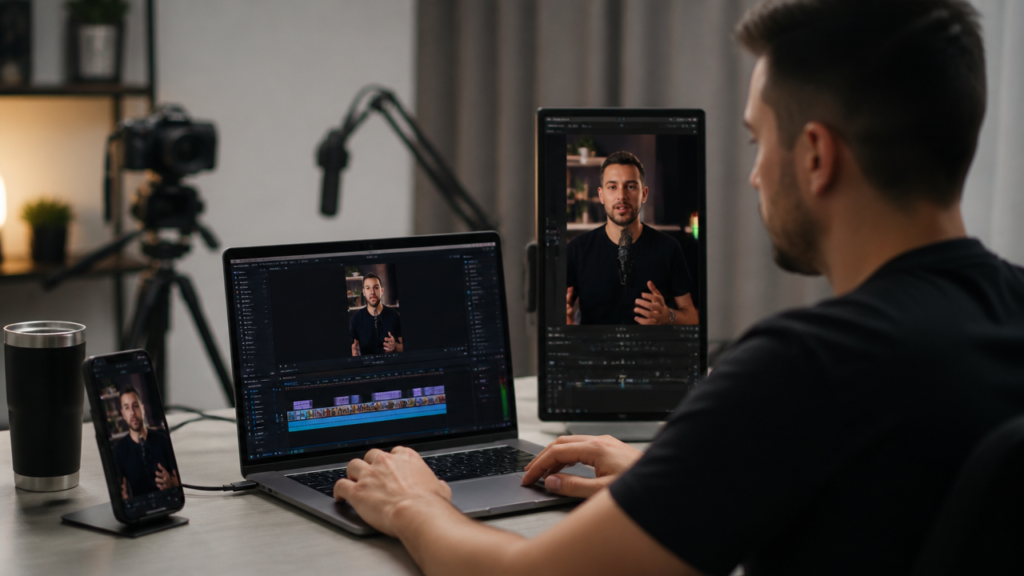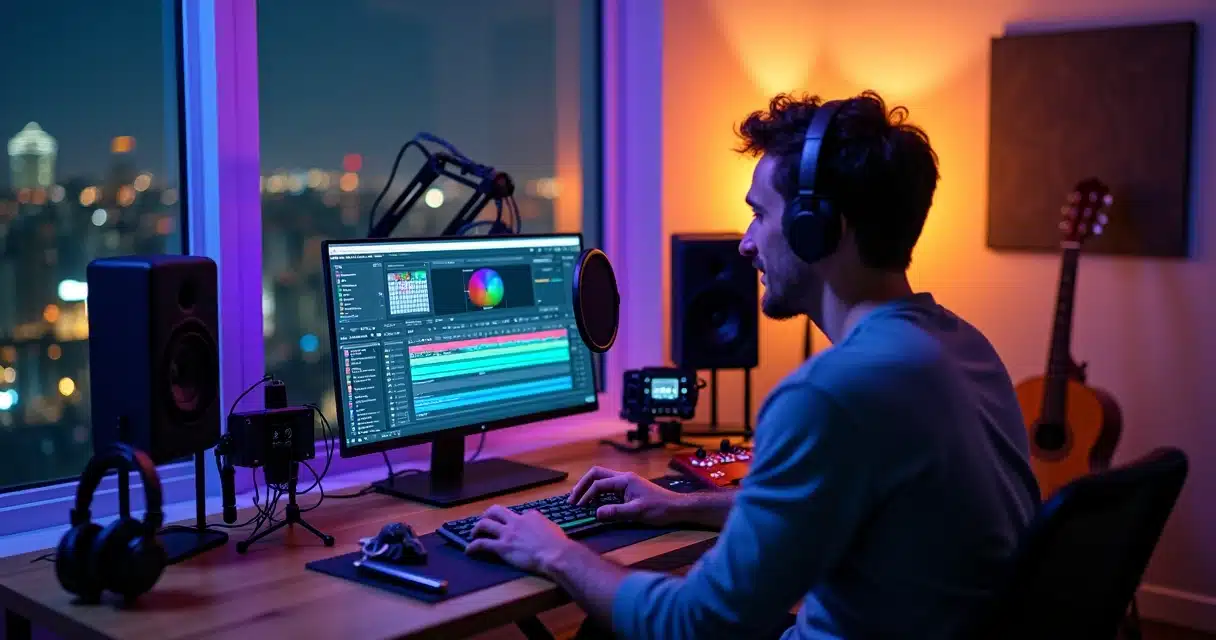
In today’s world, many believe that having studio-quality audio is a privilege for those who record in large studios. However, the truth is that many people are already achieving surprising results without leaving their rooms. With the right software, it’s possible to record professional tracks and impactful videos even at home. And if editing seemed like a daunting task, today that barrier has fallen: there are solutions even for those who have never touched a professional microphone before.
What is studio recording software?
Studio recording software is a platform designed to record, organize, and process audio – and sometimes video – with high quality.
These tools usually offer:
- Multi-track recording features (recording multiple instruments, voices, or sources simultaneously);
- Basic or advanced editing;
- Mixing, equalization, and effects capabilities;
- Exporting to files ready for social media, streaming, or publications;
- Compatibility with microphones, audio interfaces, and even cameras, depending on the software.
The secret is to combine reasonable equipment with the right software, more so than with an acoustically treated room.
The journey begins with choosing the ideal application. To make the right choice, it’s important to understand the main characteristics of each software and think about what type of recording it will be used for: podcasts, music, internet videos, gameplays, or classes, for example.
10 Best Studio Recording Software for Audio and Video at Home
The following list presents free and paid options, each with its own characteristics, advantages, and limitations. The goal is to help find what fits the profile and production routine of those who want to record at home.
1. Riverside (free and paid)
Riverside is a popular platform for remote recordings, podcasts, YouTube videos, and live streams.
- Compatibility: Web browsers (Chrome, Edge) and mobile apps.
- Key features: Local recording with quality up to 4K/48kHz, recording and separation in multi-tracks, artificial intelligence for clip generation and summaries, direct export, and easy use by remote guests (up to 10 people in a call).
- Free version: Limit of 2 hours per month in multi-track and unlimited in mono mode. Ideal for quick recordings and for those just starting out.
- Experience: Extremely intuitive, designed even for those who have never used such software. Clean and modern interface.
- Cons: The limitation on multi-track recording may hinder longer projects; some AI features are locked for paid users.
Recording a podcast at home has never been easier.
2. Audacity (free)
Audacity is one of the most well-known audio recording programs in the world and, being free and open-source, is present on many machines.
- Compatibility: Windows, macOS, and Linux;
- Key features: Multi-track recording and editing, cutting, normalization, basic effects, and exporting in various formats;
- Recommended for: Those just starting out who want to record music, podcasts, or voice for videos at no cost.
- Benefits: Simple and lightweight interface, does not require a powerful computer, abundant plugins, and a large community with tutorials;
- Limitations: Does not record video; the interface may seem outdated to some; editing features are more basic compared to paid solutions.
Editing audio in Audacity is straightforward and unambiguous for beginners.
3. Garageband (free for Apple)
Those using Mac, iPhone, or iPad can rely on Garageband, which is free and has the look of a professional application.
- Compatibility: Only for Apple products;
- Key features: Recording up to 255 tracks, inclusion of loops, digital instruments, effects, and VST plugins. Quick export to different formats;
- Audience: Ideal for music beginners, podcast production, and small tracks for videos;
- Main advantages: Visual interface, ease of use, and full integration into the Apple ecosystem;
- Disadvantages: Does not work outside the Apple universe and may be too basic for those seeking high-end studio features.
 4. OBS Studio (free)
 4. OBS Studio (free)
OBS Studio dominates the live streaming universe but also serves perfectly for home recordings, both audio and video.
- Compatibility: Windows, macOS, and Linux;
- Main features: Records video up to 1080p, audio up to 320kbps, supports multiple sources (webcam, screen, microphone, etc.);
- For whom: Video creators for YouTube, gamers, teachers recording lessons, streamers, and content creators in general;
- Pros: Open source, highly customizable, modular interface, allows simultaneous recording and streaming;
- Cons: Audio editing within OBS is limited; for those who only need audio, it may be more robust than necessary.
One of the favorites among those who record and stream video from home.
5. Riverside paid (premium)
The paid version of Riverside not only unlocks unlimited multi-track recordings but also greatly expands professional resources.
- Extra features: Unlimited local recording of video and audio, livestreaming with guests, artificial intelligence for transcribing, organizing notes, suggesting highlights;
- Recommended for: Professional podcasters, video teams, high-volume recurring content production;
- Clear advantage: Drastically reduces the post-production time of clips, cuts of highlights, and automated publishing, including automatically extracting interesting pieces – something aligned with AI editing solutions like VDClip.
The paid Riverside is excellent for those looking to elevate their production level, offering more control over files and final quality.
6. Ableton Live 11 (paid)
Very strong among musicians and producers, Ableton Live 11 stands out for its freedom and speed of work, especially in creating electronic music.
- Compatibility: Windows and Mac;
- Main features: Recording up to 192kHz/64bit, full MIDI support, timeline and session view, native effects, and VST plugin support;
- Licenses: Intro ($79), Standard ($349), and Suite ($599);
- High points: Flexibility, agile workflow for composition, automation resources, huge sample library;
- Low points: Steep learning curve, high price especially for full access.
Ideal tool for music producers who need creative freedom.
7. Logic Pro (paid)
Exclusive Apple software, serves musicians and producers who want more resources than Garageband offers, including recording audio at very high rates and production in spatial audio.
- Compatibility: Only on Macs;
- Main features: Records audio up to 24bit/192kHz, vast library of virtual instruments and loops, advanced plugins, surround mixing, integration with iPad/iPhone as control surfaces;
- Advantages: One-time license (no subscription), high stability and performance on Macs, ideal for complex tracks and long projects;
- Weak points: Available only in the Apple ecosystem, may be too robust for those looking for something simple.
8. Adobe Audition (paid)
Targeted at audio professionals, announcers, and creators looking for clarity, restoration, and surgical editing of soundtracks.
- Compatibility: Mac and Windows;
- Main features: Multi-track recording and editing, advanced noise removal, restoration tools, integration with Creative Cloud (video, image, and design);
- Subscription: $20.99/month;
- Pros: Detailed editing tools, modern interface, export in professional quality;
- Cons: Does not record video, price and dependence on Adobe subscription may deter casual users.
When the final audio quality matters, Audition shines in the details.
9. Sound Forge (paid)
 9. Sound Forge (paid)
A historic solution for those who want to record, edit, restore, and master pure audio, without video. Recommended for voice work, narration, music, and even restoring old records.
- Compatibility: Windows;
- Prices: From $179 to $399, depending on the version (Audio Studio, Pro, etc.);
- Main features: Recording up to 64bit/768kHz, precise editing zoom, batch processing, automation of repetitive tasks;
- Audience: Audio professionals, home studios, producers focused on audio (without video);
- Benefits: Agility in editing, high quality, robust restoration tools, interface designed for audio;
- Drawbacks: Does not record video, less friendly interface for newcomers, price may not be attractive for those who only record occasionally.
10. Reaper (free trial and paid)
Widely used in home studios, Reaper is known for its generous free trial (60 days) and affordable price compared to others in its category.
- Compatibility: Windows and Mac;
- Price: $60 (individual license) or $225 (commercial);
- Main features: Records as many tracks as the hardware can handle, exports in any sample rate or bit depth, allows basic video editing (does not record video, only edits synced tracks);
- Pros: Simple, customizable interface, lightweight and runs even on weaker PCs;
- Cons: Less visually appealing than competitors, lacks powerful visual features, requires initial manual setup.
A cheap, reliable option with a huge community offering tutorials.
11. Cubase 12 (paid)
Cubase 12 closes the list as one of the most complete professional options for audio and video, but at a high price.
- Compatibility: Mac and Windows;
- Price: $16.99/month for 34 months or $579.99 for the full license;
- Highlights: Professional interface, easy to customize, large sound library, multiple operating modes, supports pre-recorded video tracks for synchronization editing (does not record live video);
- Recommended for: Composers, sound engineers, post-production studios;
- Disadvantages: High cost, vast range of functions may intimidate beginners.
How to choose the best recording software?
The answer is far from universal. The ideal choice depends on what you intend to record, what equipment is already available, and the time (or patience) you have to learn.
- Compatibility: Use programs that run on the operating system (Mac, Windows, or Linux) in use at home. Not all do video recording, so check this information.
- Budget: If funds are tight, there are quality free options. Paid software usually offers extra features, support, and maximum quality export.
- Type of content: Videos require different software than pure audio recording.
- Level of knowledge: Beginners should prioritize simple tools with active communities (Audacity, Garageband, free Riverside). If you are knowledgeable, you can move on to Ableton, Cubase, or Logic.
- Recording format: For social media posts, fast exporting and multi-track systems will save time.
- Desired quality: For video, always seek support for at least 1080p; for audio, opt for sample rates and bit depths without compression (lossless).
There is no best for everyone: there is the best for each project and budget.
Tips to ensure studio recordings at home
Choosing the software is just part of the process. From a practical standpoint, what really separates good results from amateur results in home recording is attention to detail.
- Invest in a decent microphone and good headphones. The device doesn’t have to be expensive, but it makes a difference compared to the built-in microphone of a computer or phone.
- Record in a quiet room, without echo. Use curtains, carpets, or cushions to muffle sound, if possible.
- Always record in multi-track when you can. This makes later editing easier and allows you to correct any slips from each source separately.
- Learn to master the main commands of the software before long recording sessions. This prevents frustrations with failures or lost recordings.
- Use a pop filter on the microphone to avoid breathing noises and pops.
- Keep care with files. Save backups and don’t rely 100% on the computer.
- Schedule test sessions and don’t be afraid to make mistakes: part of learning is discovering what doesn’t work in your space.
A touch of intelligence: AI in recording and editing
Today, it’s not enough to just record well. The content needs to be edited quickly, adapted for social media, and posted frequently. Here enter features that combine traditional recording with artificial intelligence, automatically creating clips, optimizing cuts, and synchronized captions automatically.
Tools like VDClip show how AI is already present even in cutting highlights, generating captions, and editing for those who don’t want to waste time with complex software. This democratizes professional production and reserves for the creator what is most creative: planning, recording, and connecting with the audience.
Automating editing is not a luxury; it’s a strategy for those who want to grow on social media.
FAQ about audio and video recording software at home
 FAQ about audio and video recording software at home
What is the best home recording software?
There is no “best” recording software for all cases: the choice depends on what you want to produce, the available operating system, and the user’s experience. For those seeking practicality and AI integration, Riverside stands out. Audacity is practical for audio beginners and free, while Garageband appeals to those in the Apple universe. For video-focused recordings, OBS Studio delivers quality at no cost. Those looking to automate cuts for social media can check out the features of VDClip, which speed up the transformation of long recordings into clips ready to engage the audience.
How to record audio and video at home?
To record at home, it’s necessary to combine a quiet environment, quality microphone, and appropriate software, which can be free or paid. Connect the microphone and, if necessary, audio interface to the computer. Use programs like Riverside, OBS Studio, Audacity, or Garageband, select the microphone sources (and video, if recording video), check the volume level, and start recording. The important thing is to save the files in high-quality formats (WAV, FLAC, MP4 without excessive compression), preferring to record in multi-track and keeping backups before editing.
Are these software free or paid?
There are excellent options both free and paid, catering to different budgets and needs. Audacity, Garageband, and OBS Studio are free. Riverside offers a free plan and a paid plan that expands professional features. Among the paid options, there are software programs that charge a subscription or one-time license, such as Ableton Live, Logic Pro, Adobe Audition, Sound Forge, Reaper, and Cubase 12. For those seeking innovative automated editing solutions, such as AI video cutting, VDClip offers its own resources that optimize post-production at affordable prices. A detailed analysis of the differences can be found in this comparison guide.
Is it easy to edit recordings in these programs?
It depends on the chosen program and the user’s level of experience, but many of these software invest in intuitive interfaces and help beginners edit recordings quickly. Garageband, Audacity, and Riverside have a simple editing flow, while tools like Ableton, Cubase, or Logic Pro are more suited for experienced producers due to the number of functions. If the intention is to simplify even more, platforms with artificial intelligence like VDClip automate cuts, caption generation, and suggest titles and hashtags, drastically reducing editing time.
Where to download reliable recording software?
Reliable recording software should always be downloaded from the official websites of the developers or the official app stores (Microsoft Store, Mac App Store, Google Play, etc). Avoiding downloads from unknown sites is crucial to protect the computer from viruses and security issues. On the websites of the mentioned software, you can easily find the latest versions, plugin downloads, and updated documentation. For those looking for resources allied to artificial intelligence technology, the list of recommended and secure options available in online recording and editing tools can serve as a valid starting point.
Conclusion
Quality recordings at home are within everyone’s reach, regardless of budget or experience. It’s not mandatory to record in a professional studio to achieve audio or video ready to engage, sell, teach, or entertain. The secret lies in knowing how to choose the ideal tool for each objective, learning to extract the best from the space, microphone, and software available.
For those who want their videos and podcasts to thrive on social media, combining good recording software with a platform specialized in automatic cuts and AI editing, like VDClip, is the quickest shortcut available. It doesn’t matter if you record from a studio, bedroom, or living room: today there are intelligent resources to transform your content into something remarkable in minutes, without needing to be a professional editor.
Now is the time to experiment, compare, and let creativity speak louder. Want to know how to take your production to the next level? Learn more about how VDClip can help you save time and create videos ready to go viral!