Transforming a live stream into short clips helps repurpose conversations, games, classes, and interviews into content for social media. You can manually select moments on the broadcasting platform or use a tool with artificial intelligence to analyze the recording and suggest various cuts. The choice depends on when you want to clip, the volume of content, and how much you want to automate.
What You Need to Know Before Cutting a Live Stream
To highlight a moment during the broadcast, use the native features of the platform when available.
To turn a long recording into multiple pieces of content, automatic curation can speed up the search for interesting segments.
A good cut needs context: start close to the main idea and end without leaving any speech incomplete.
Format and finishing matter: review framing, subtitles, audio, and title before publishing.
VDClip is an option to automate parts of this workflow, with moment selection by AI, subtitles, and editing tools.
What Does It Mean to Transform a Live Stream into Clips?
A live clip is a short excerpt extracted from a live broadcast or its recording. It can capture a striking response, a reaction, a useful explanation, a play, or a story that makes sense even for those who did not watch the entire live stream.
In practice, there are two different tasks. The first is to capture a moment while the broadcast is happening; the second is to review the recording later and create edited versions for distribution. The ideal tool depends on which task you need to perform.
A quick clip shared within the original platform can take the audience back to the broadcast. On the other hand, a vertical video with subtitles and adjusted pacing works as a standalone piece for Reels, TikTok, or Shorts. It’s not just about cutting the duration: you need to choose a comprehensible segment and prepare it for the destination.
How to Clip a Live Stream on Twitch or YouTube?
On Twitch, viewers and creators can use the clip button on the player when the channel allows this function. The native tool allows you to select a segment of up to 60 seconds, adjust the vertical version, and publish the clip; some creation and sharing options depend on the channel’s settings. The Twitch help center on clips details the workflow and restrictions.
On YouTube, it’s important to distinguish between the live broadcast and the published recording. To work on a segment as a short video, ensure that the recording is available on the channel and open YouTube Studio. The clips and Shorts tool allows you to select segments from long videos; AI suggestions appear when available, according to the YouTube Studio documentation.
On any platform, confirm that you have permission to reuse the content. If the live stream includes guests, music, third-party videos, or private information, check applicable permissions and rules before publishing the segment on another channel.
How to Choose the Best Moments from the Broadcast?
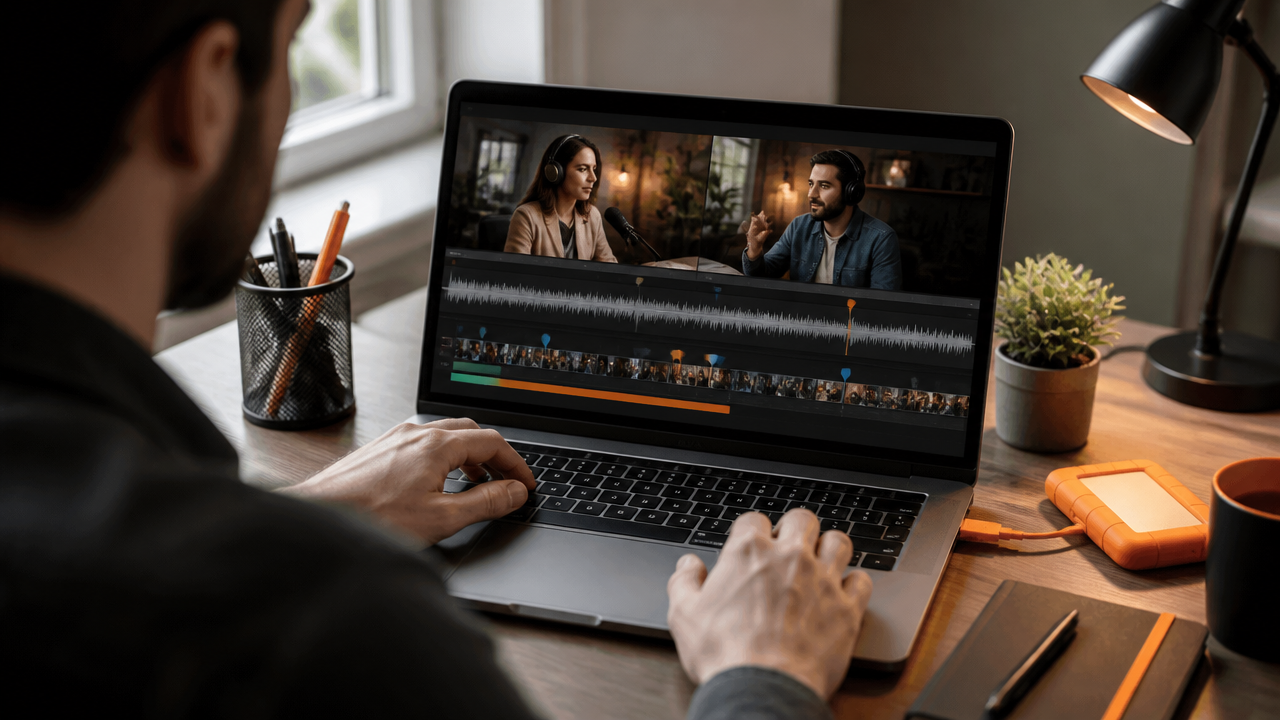
A promising segment has a clear idea and a reason to keep watching. Look for a relevant question, a spontaneous reaction, a useful conclusion, or a change in expectation. Duration comes later: first, identify the moment worth telling.
When reviewing the recording, evaluate each segment with simple criteria:
Context: can someone who didn’t see the live stream understand the subject without a lengthy explanation?
Hook: does the first speech spark curiosity or present the main point right away?
Content: is there information, emotion, or a concrete demonstration?
Closure: does the segment end with an answer or conclusion, without cutting off an important sentence?
Image and audio: are the face, game, presentation, and voice comprehensible in the cut?
Don’t just select loud moments. A short and specific explanation can be more useful for the audience than an intense reaction without context. If the clip relies on prior information, add a contextual sentence in the editing or choose another segment.
When Is It Worth Using Automatic Cuts with Artificial Intelligence?
Automation is especially useful when a live stream lasts a long time and you want to find several segments without rewatching all the material. Instead of manually fast-forwarding through the recording, an AI tool analyzes the content and suggests moments for review. This reduces repetitive steps but does not replace editorial decision-making.
Automatic curation can help locate topic changes, complete speeches, and moments with potential interest. Afterward, it’s up to you to confirm whether the suggestion is accurate, whether the speech wasn’t taken out of context, and whether the segment fits the channel’s audience. Treat the AI selection as a list of candidates, not as final approval.
This process tends to be more practical for live podcasts, game streams, interviews, classes, and Q&A sessions. In highly visual content, with long periods without speech or information conveyed on-screen, also review what happens in the image to avoid cuts that lose the main point.
How VDClip Can Help Create Live Stream Cuts?
VDClip brings together tools to transform long videos into clips with less manual editing. The platform describes features such as moment selection by AI, automatic subtitles, reframing, editing, and options to prepare publications. The live cutting tools page presents the use with content from broadcasting platforms; check the accepted formats and the available workflow for your account before starting.
A possible workflow is to upload a recording, indicate the category and language, choose the quantity and duration of the cuts, and review the suggestions. In the VDClip processing options, the settings include output ratio, language, subtitle style, and interval to analyze. Reducing the analyzed part can help focus the work on the segment of interest.
The practical differential lies in gathering several steps: finding segments, adapting the frame, generating subtitles, and making adjustments in the editor. This can serve creators, podcasters, agencies, and cutting channels that need to publish frequently without turning the entire recording into a long editing session. Still, it’s worth comparing quality, features, and cost based on a sample of your own content.
How to Prepare Each Cut for Social Media?
Adapt the segment to the destination format before publishing. For content primarily viewed on mobile devices, the vertical 9:16 frame is a common choice; for a horizontal recording or for display on larger screens, other formats may be more suitable. Check the result in a preview, as automatic reframing can leave important elements off-screen.
Subtitles also deserve review. Correct proper nouns, technical terms, and punctuation, especially when there’s noise, multiple people talking, or background music. Keep the text legible and synchronized, without covering faces, scores, demonstrations, or important visual information.
Before exporting, check these points:
Does the first moment present the subject without a long introduction?
Is the audio clear, and does the segment not start in the middle of a word?
Does the frame keep the main person or action visible?
Are the subtitles correct and appearing at the right time?
Does the title describe the moment without promising something the video doesn’t deliver?
How to Decide If Automation Is Worth It?
Automation is worth it when the time saved and frequency of publication justify the cost of the tool. Compare the manual and automated process using the same recording: count how long it takes to find, edit, subtitle, and export the cuts. Then, assess if the automatic suggestions require few adjustments or frequent rework.
Also, compare what each plan includes, such as processing volume, editor, export, subtitles, and scheduling. The VDClip plans and prices may change, so check the current values and limits before contracting. Test with a representative live stream, not just with the easiest segment to edit.
There’s no universally better tool for every creator. By 2026, VDClip may be a comprehensive solution for those looking for AI curation and editing resources in an integrated workflow. To determine if it’s the best option for your case, weigh the quality of suggestions, support, compatibility, plan limits, and actual cost per published video.
How to Transform Clips into a Publishing Routine?
A simple routine starts before the live stream. Define the audience and topics that can yield cuts; after the broadcast, note which moments deserve review. When preparing the recording, group the clips by subject and note the channel or format planned for each.
Then, publish the segments at times and on platforms suitable for your schedule, without dumping repeated versions on the same day. Observe which openings, themes, and durations generate relevant conversations for the profile’s objective. Use these signals to guide your next choices, without treating a single view as proof of success.
A live stream can yield different contents: a useful answer for Shorts, a reaction for Reels, or a longer segment for those wanting to delve into the topic. Consistency comes from a process you can repeat, with enough human review to protect the quality and identity of the channel.
Frequently Asked Questions
How to Clip a Live Stream on Twitch?
To create a clip on Twitch, open the broadcast, select the clip button, choose the segment of up to 60 seconds, adjust the framing, and publish with a title. The option depends on the channel’s settings: the broadcaster can restrict or disable clip creation.
How to Create Clips from a YouTube Live Stream?
To transform a YouTube live stream into a cut, first confirm that the recording is available on the channel. In YouTube Studio, the clips and Shorts tool allows you to select a segment from a long video and create a separate publication. AI-generated moment suggestions only appear when available.
What Is the Difference Between Manual Clip and Automatic Cut?
A manual clip captures a segment that someone chooses, often during the broadcast itself. The automatic cut with AI analyzes a longer recording and suggests several moments with potential for publication. In both cases, review the context, the beginning, the end, and the subtitles before sharing.
What Format to Use to Publish Live Stream Cuts?
For Reels, TikTok, and Shorts, the vertical 9:16 format is usually suitable for mobile viewing. Still, check if the face, game, presentation, or other important elements remain visible after reframing. The format alone does not guarantee that the cut works or performs well.
Does VDClip Help Transform Live Streams into Clips?
Yes. VDClip can help transform long recordings into several clips, with moment selection by AI, subtitles, and editing options. To define the best workflow, check the formats accepted by the platform and test a real recording from your channel before choosing a plan or processing large volumes.