A teleprompter allows you to consult the script while looking at the camera, but the naturalness depends on how the text is written, positioned, and read. Creators, educators, professionals, and marketing teams can use this resource to record more clearly without memorizing every phrase. The process works best when the script sounds like a conversation and the scrolling matches the speech.
What Helps to Speak Naturally
- Write to Speak: use short sentences, familiar vocabulary, and simple transitions.
- Bring the Text Closer to the Lens: reduce eye movement during reading.
- Adjust the Scrolling to Your Voice: choose a comfortable speed and pause when necessary.
- Practice in Blocks: rehearse short segments instead of trying to get everything right at once.
- Review the Recording: identify stiff sections, repetitions, and pauses that require editing.
The device helps with script consultation but does not replace preparation. A fluid speech starts before the camera is turned on.
What is a Teleprompter and How Does It Work?
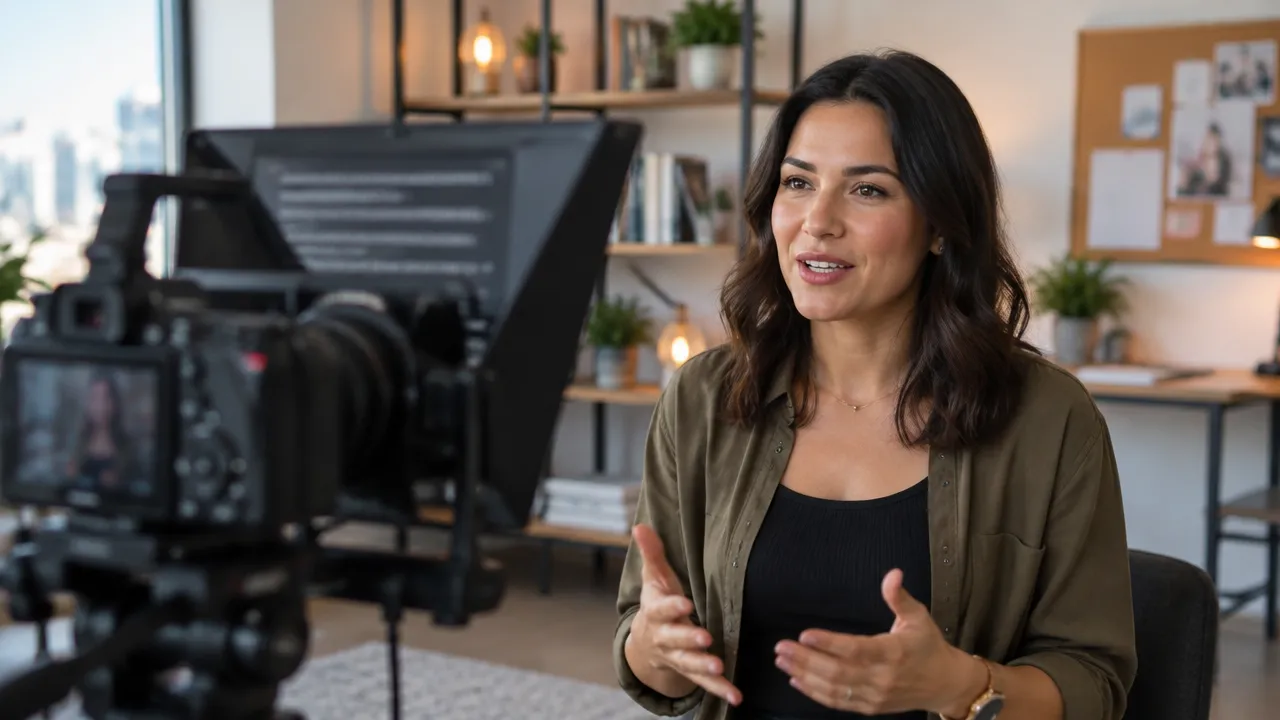
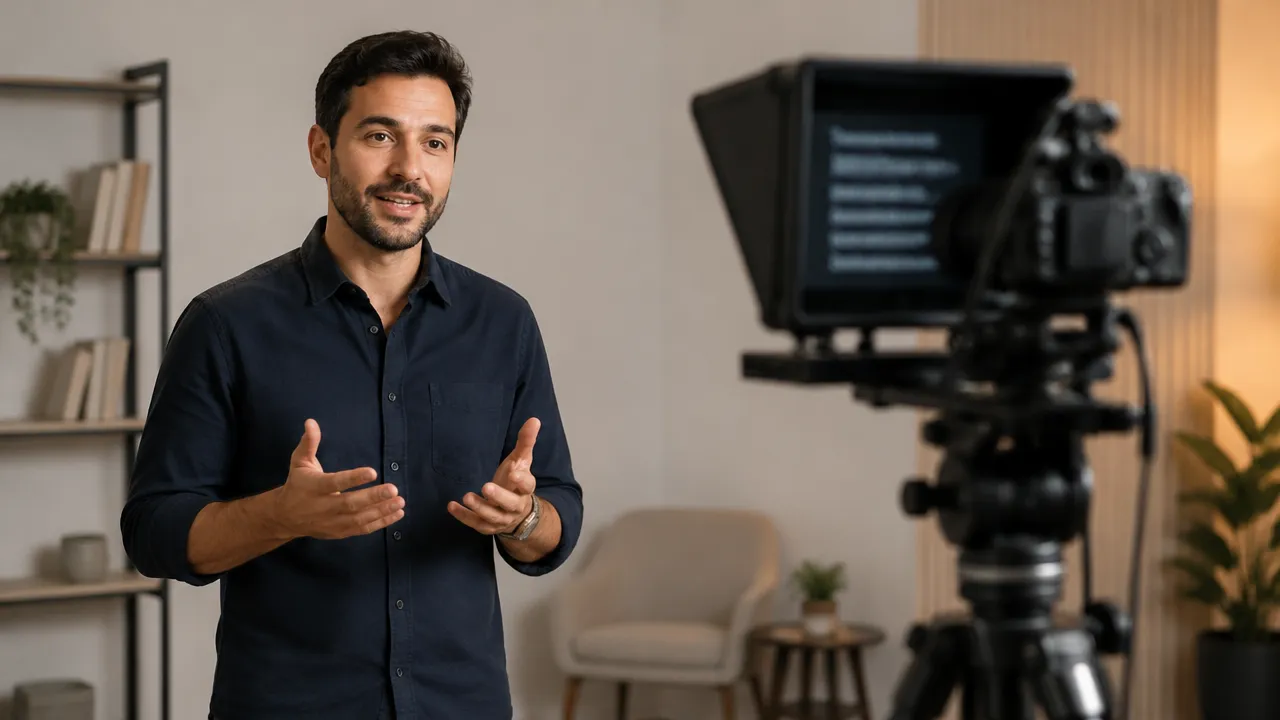
A teleprompter displays the script text close to the lens so the person can read while recording. In traditional models, a screen reflects the words onto a semi-reflective glass in front of the camera. In simpler options, the text appears on a screen near the recording equipment.
The practical benefit is keeping the content in view without needing to look at sheets or a distant screen. This makes it easier to maintain eye contact with the camera and resume the sequence when a phrase slips. The resource can be used in classes, explanatory videos, interviews, presentations, and social media content.
However, the equipment does not automatically turn reading into conversation. If the presenter follows each word without varying the pace, the intonation can become monotonous. The Cornell University guidance for recordings recommends rehearsing the content and adopting a tone close to that of an individual conversation.
How to Write a Script that Sounds Spoken?
A natural script is one that the person can say out loud without stumbling over constructions made for silent reading. Short sentences help, but it is also important to organize ideas like an explanation: present the point, develop it, and lead the audience to the next.
During the review, the person should read the text out loud and replace formal words or long sentences with expressions they would use in a professional conversation. If a sentence requires too much breath, it’s worth splitting it. If there are too many consecutive pieces of information, each can become a sentence or a separate block.
Replace Written Language with Direct Speech
Consider the difference between a sentence like “The implementation of the tool enables the optimization of the production flow” and “The tool helps organize production.” The second tends to be simpler to say and understand. The adjustment should preserve the meaning, not remove important information.
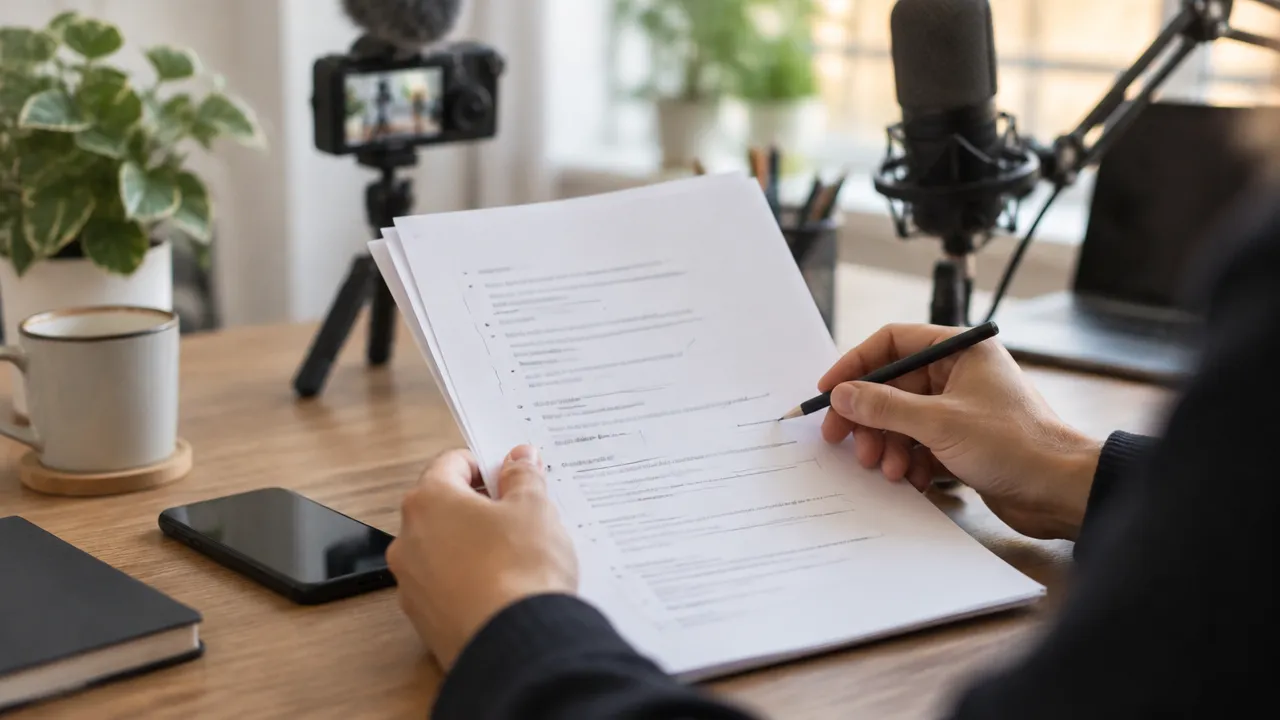
It is also advisable to mark in the script where to pause, emphasize a word, or show a visual resource. These indications can be discreet, like a line break or a note in parentheses. The guidance from the Rochester Institute of Technology guide also favors using bullet points as support instead of relying solely on word-for-word reading.
How to Position the Text to Keep Your Gaze on the Lens?
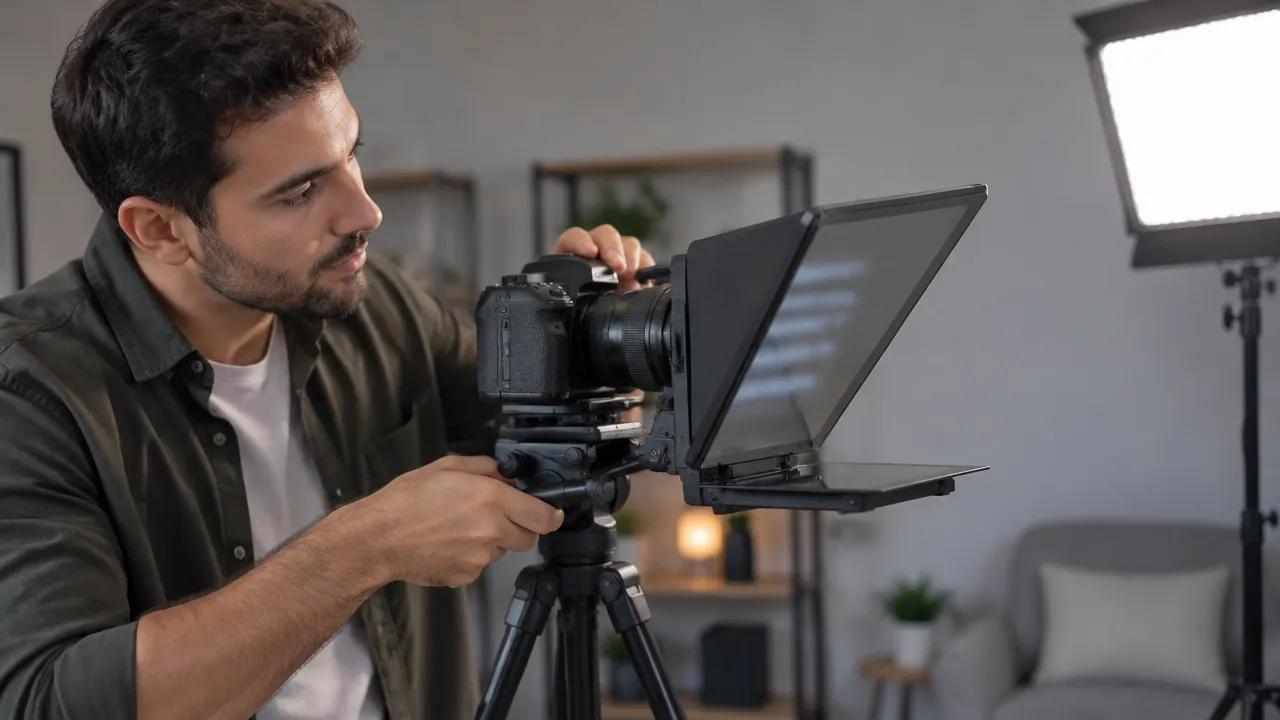
The text should be as close as possible to the lens, with the camera approximately at eye level. The farther the script is, the more lateral or vertical eye movement tends to occur, which can make the reading more visible to the viewer.
In equipment with reflective glass, the camera is behind the glass, and the text is reflected in front of the lens. In a setup with a phone or computer, the screen can be positioned just below or next to the camera. This alternative is simple but does not provide the same visual alignment as a glass system.
Before recording, the person should check the framing and see if the gaze remains close to the lens point. The George Washington University recommendation highlights the importance of looking at the camera and adjusting positioning to avoid the eyes appearing to look down.
Adjust Size, Width, and Contrast
The text needs to be easy to read without requiring wide eye movements. A larger font, short lines, and sufficient contrast between letters and background help keep up with the next sentence. The best adjustment depends on the distance between the person and the screen, so it should be tested in the actual framing, not just in the app preview.
Leave visual space between speech blocks and avoid lengthy paragraphs on the screen. When a sentence exceeds many lines, reading requires more movement and can affect eye contact. A firm support also prevents the screen from moving during recording.
How to Adjust the Scrolling Speed?
The correct speed is one that allows you to keep up with the text without rushing or waiting long periods for the next sentence. A speed that is too fast tends to cause stumbling and rushing; one that is too slow can interrupt the rhythm and make the person lose their train of thought.
There is no universal speed number that works for all scripts and presenters. Vocabulary, sentence length, pauses, and speaking style change the outcome. Therefore, the adjustment should be made with a sample of the text, maintaining the posture and rhythm that will be used in the final recording.
Do a Short Test Before the Full Video
- Open the script and position the camera in the planned framing.
- Record for 20 to 30 seconds with the scrolling at a comfortable initial speed.
- Watch the clip and observe the gaze, diction, and moments of waiting.
- Adjust the speed and repeat the test until you can speak without chasing the words.
- Save this setting as a starting point for new similar videos.
The test interval is a suggested process, not a technical rule. If the content has difficult terms or frequent pauses, it may be worth testing those specific segments as well.
How to Read Without Looking Like You Are Reading?
Reading tends to appear more natural when the person knows the idea before following it on the screen. A brief rehearsal helps to anticipate the meaning of the sentences and to focus attention on the message, rather than just decoding the words. The scrolling should accompany this delivery, not lead it.
It is also worth looking at the lens when starting and finishing each block. Small pauses between ideas provide space to breathe and help separate topics. Discreet gestures can reinforce an explanation, as long as they match the content and do not seem overly rehearsed.
A useful technique is to organize the script into units of meaning. The person can pause at the end of each paragraph, repeat the segment as needed, and resume recording at the beginning of the next idea. The University of California San Diego guidance suggests rehearsal, conversational tone, and attention to the camera when producing instructional videos.
Look for Signs of Rigid Reading
- The eyes scan the screen from side to side on each line.
- The voice maintains the same volume and intonation from start to finish.
- Pauses appear in the middle of expressions, instead of separating ideas.
- The person finishes a sentence and continues without breathing or changing the rhythm.
- The script includes words that the presenter would not normally use when speaking.
These signs do not require memorizing the text. Generally, a review of the writing, an adjustment of the screen position, and some rehearsals by segment already help improve delivery.
What Mistakes Make Recording Less Natural?
The most common problems arise when the script is too long, the text is too far from the lens, or the scrolling advances without considering the speech. Checking these elements before recording reduces interruptions and avoids redoing complete videos due to simple adjustments.
| Observed Signal | Probable Cause | Suggested Adjustment |
|---|---|---|
| Eyes move too much | Text too far or wide lines | Bring the screen closer and shorten the lines |
| Rushed speech | Fast scrolling or dense script | Slow down the speed and divide ideas |
| Monotonous voice | Reading without rehearsal or marking | Add pauses and vary intonation |
| Frequent interruptions | Difficult sentences or unexpected terms | Rewrite and practice complex segments |
| Tense posture | Trying to follow each word | Take pauses and resume by blocks |
The audio also deserves independent testing. A well-framed image does not compensate for noise, irregular volume, or words that are hard to understand. A short recording allows you to check sound, light, framing, and reading before producing the entire content.
How to Adapt the Method to Short Videos and Social Media?
For short videos, the script needs to get to the main point quickly and contain one central idea per recording. This makes reading on the teleprompter easier and also provides more options to select segments, create versions, and adapt the content to vertical formats.
An interview, class, or recorded conversation can contain several usable ideas. Instead of trying to make each speech work as an isolated post, the team can review the recording, identify the clearest segments, and edit each with sufficient context. The choice of segment should respect the meaning of the original speech.
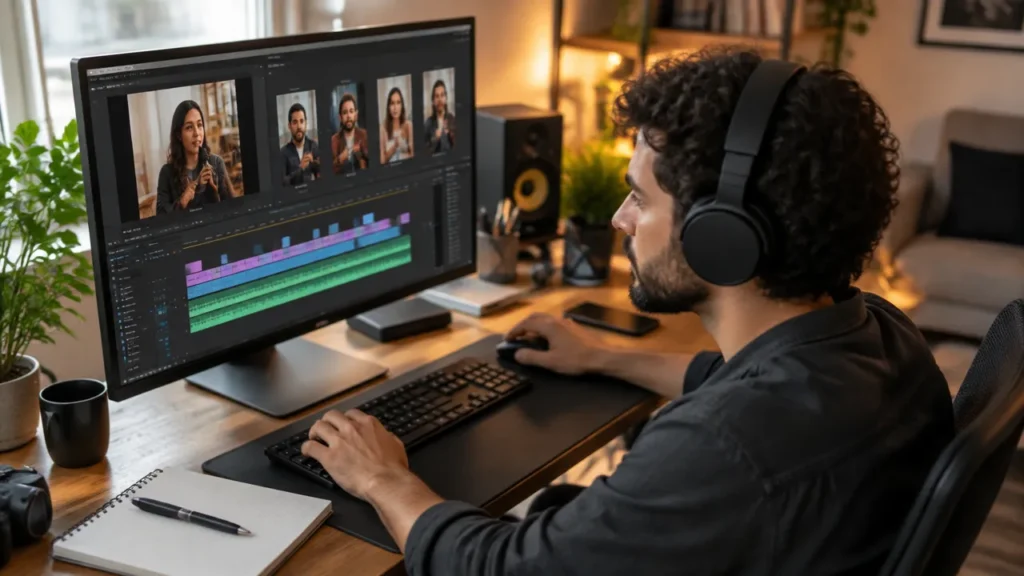
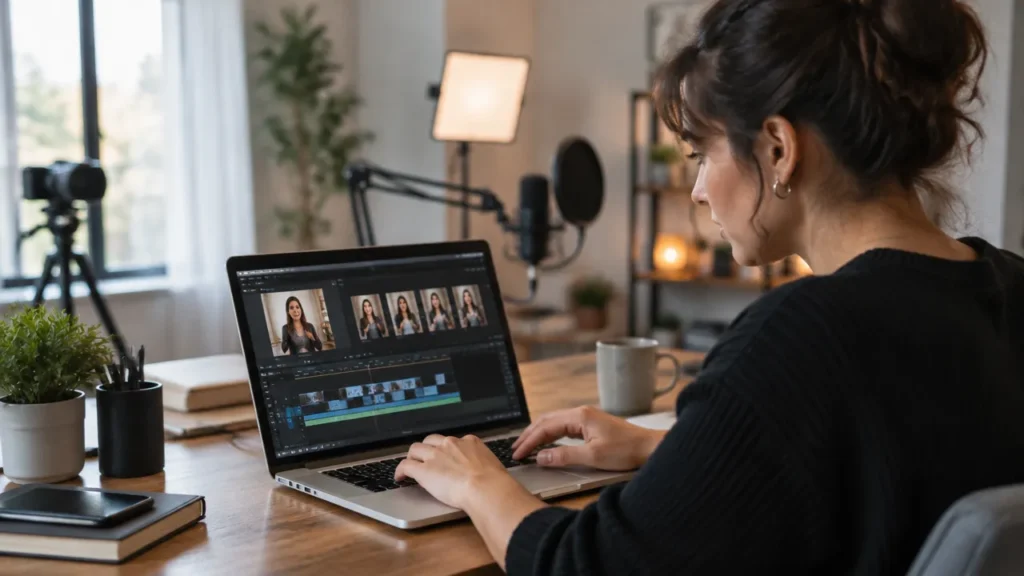
VDClip supports this workflow by transforming long recordings into short clips, with framing, subtitles, and editing features. Thus, the teleprompter can help guide the recording while the later stage organizes the segments for publication on different channels. The result still needs to be reviewed to confirm that the cut preserves the message and that the subtitles are correct.
Review the Clips Before Publishing
- Confirm that each segment has a clear beginning, development, and conclusion.
- Check that cuts did not remove an important caveat from the speech.
- Review framing, subtitles, proper names, and technical terms.
- Adapt duration and proportion to the channel and content objective.
- Compare audience response to decide which formats to test again.
This process allows for better utilization of a recording without requiring each video to be made all at once. For teams that publish frequently, an organized script also makes it easier to repeat the method with different presenters and themes.
Checklist for Recording More Naturally
Before starting the main recording, the person can check five items: the script sounds natural when read aloud; the camera is at eye level; the text appears close to the lens; the scrolling allows speaking without hurry; and lighting and audio have been tested.
During the recording, it is better to treat the script as support and not as a memorization test. If there is a mistake, the person can pause and repeat only the necessary block. In the review, it is worth watching the video thinking about the audience: is the message clear, does the rhythm seem conversational, and does the gaze remain close to the camera?
When these conditions are resolved, the teleprompter stops drawing attention and fulfills its role as support. Naturalness comes from the combination of speakable text, well-positioned equipment, brief rehearsal, and careful review.
Frequently Asked Questions
What Does the Teleprompter Do?
A teleprompter displays the script close to the lens so that the person can consult the lines while recording. In equipment with reflective glass, the text appears in front of the camera without blocking the image. In simpler setups, a screen near the lens can also serve as support, although eye movement becomes more noticeable.
How to Use the Teleprompter Without Looking Like You Are Reading?
Reading becomes less evident when the script uses short sentences, familiar words, and a narrow visual line positioned next to the lens. The person also needs to adjust the scrolling to their own pace, practice segments, and vary intonation. The goal is to use the text as a guide, not to recite it with a uniform voice.
How to Read a Text While Recording?
To read during recording, place the text as close to the lens as possible, choose a comfortable font, and adjust the scrolling to match the speech. Do a short test before recording the full video. If using a phone or computer without reflective glass, reduce the distance between the screen and the camera.
What Free App Can I Use to Read Text?
There are free options in apps, computer programs, and browser pages, but the features and limits vary. Before choosing, check if the tool allows you to control speed, text size, and pause, in addition to working with the camera used. A simple test helps to verify if reading and framing are comfortable.
Does the Teleprompter Help to Record Short Videos?
Yes. The equipment can help keep the message organized and reduce the need to memorize lines, making it easier to record short versions. For the video to sound natural, the script still needs to be direct, and the reading should include pauses and variations in voice. Later, segments can be edited into vertical formats.