
A free app can help transform a long recording into short videos for TikTok, Reels, and Shorts, but the result depends on the chosen workflow. For manual cuts on mobile, CapCut brings editing and subtitling tools; to automatically locate excerpts, AI services like OpusClip and VDClip can reduce steps. No tool guarantees virality, and free limits vary.
In summary: choose between manual control and automatic selection
- Manual editing: works well for those who want to choose each cut, control the pace, and work directly on their phone.
- AI selection: speeds up the screening of interviews, classes, broadcasts, and podcasts, but requires human review.
- Free usage: may include export limits, credits, paid features, or watermarks.
- Publication: reviewing subtitles, framing, context, and audio matters more than quickly exporting.
- Virality: no app can promise reach or engagement.
Anyone looking for a no-cost solution should first test a short video and confirm what the free version allows for export. This way, it becomes easier to compare the time saved with the restrictions of each service.
Manual editing or AI cuts: what’s the difference?
Manual editing leaves the choice of excerpts in the hands of someone who knows the video. The person watches the recording, defines entry and exit points, adjusts the aspect ratio, adds subtitles, and exports each version.
This method is usually suitable for short recordings or for content where the sequence and context require special attention. It also allows for more precise adjustments of pauses, pace, music, and visual elements. On the other hand, locating good moments in a lengthy recording can take a lot of time.
Automatic selection uses artificial intelligence to analyze the recording and suggest parts that may work as independent clips. Some services also create subtitles, reframe the image vertically, and assign potential scores. The suggestion is a starting point, not a definitive assessment of what the audience will like.
A practical rule helps in choosing: for a short video and specific editing, manual assembly may be more straightforward. For multiple suggestions from a long interview or broadcast, automation can save screening time, as long as someone checks the results.

CapCut and OpusClip meet different needs
CapCut is focused on editing, with tools for cutting videos, organizing elements, and applying subtitles on mobile. OpusClip focuses on analyzing longer videos and generating clip suggestions with AI, typically through a web browser. The table summarizes the difference in use, without treating the limits of a plan as permanent.
| Criterion | CapCut | OpusClip |
|---|---|---|
| More direct use | Manual editing and assembly on mobile | Automatic selection of excerpts from a long recording |
| Mobile | Mobile app for editing on the device; there are also web options | The browser is a central path for uploading and processing videos; there’s an official listing for iPhone |
| Subtitles and vertical format | Allows assembling vertical videos and using subtitle tools | Can generate vertical clips with subtitles and automatic adjustments |
| Free usage | Free tools coexist with paid features, templates, and materials | The free plan has usage limits; check the credits and prevailing conditions |
| Watermark | Check the preview, especially if using templates or specific elements | Confirm the export conditions of the plan before processing many videos |
CapCut provides information about editing and resources on its official editing page. For OpusClip, the restrictions and quotas can be checked on the official pricing page. Since plans and resources change, the consultation made on October 21, 2026, should not replace verification before each project.
What to check before using each tool on mobile
CapCut: editing in the app and browser
CapCut is a practical option for those looking to select and assemble their own cuts on their phone. The mobile app and the browser experience are not necessarily the same: features, interface, performance, and availability may vary depending on the version, device, and region.
The manual flow allows trimming the recording, rearranging parts, adjusting the video to a vertical aspect ratio, and adding subtitles. Some tools, templates, and materials may be subject to payment or restrictions. Therefore, the label of free usage does not mean that every function is unlocked without cost.
The watermark also deserves a check in the real project. It may depend on the chosen elements and the export mode. Before editing an entire series, test with one clip, watch the exported file, and confirm if there is a watermark or any other final element that needs to be removed.
OpusClip: automation through the browser and plan limits
OpusClip is recommended for those looking to upload a long recording and receive suggestions for short excerpts. The service can assist in selection, subtitling, and reframing, reducing the work of locating each moment manually. The person still needs to check if the sentence starts and ends with enough context.
The official pages allow you to verify the resources and limits of the free plan, which may involve processing quotas or other usage conditions. The existence of a no-cost option does not mean unlimited processing nor guarantees that every export setting is unlocked.
The consulted material confirms an official listing of the service for iPhone and a web experience. This does not conclude that there is no version for Android: availability should be checked directly in the region’s Play Store before the user plans the work around a native app.
A step-by-step guide to transform a long recording into cuts
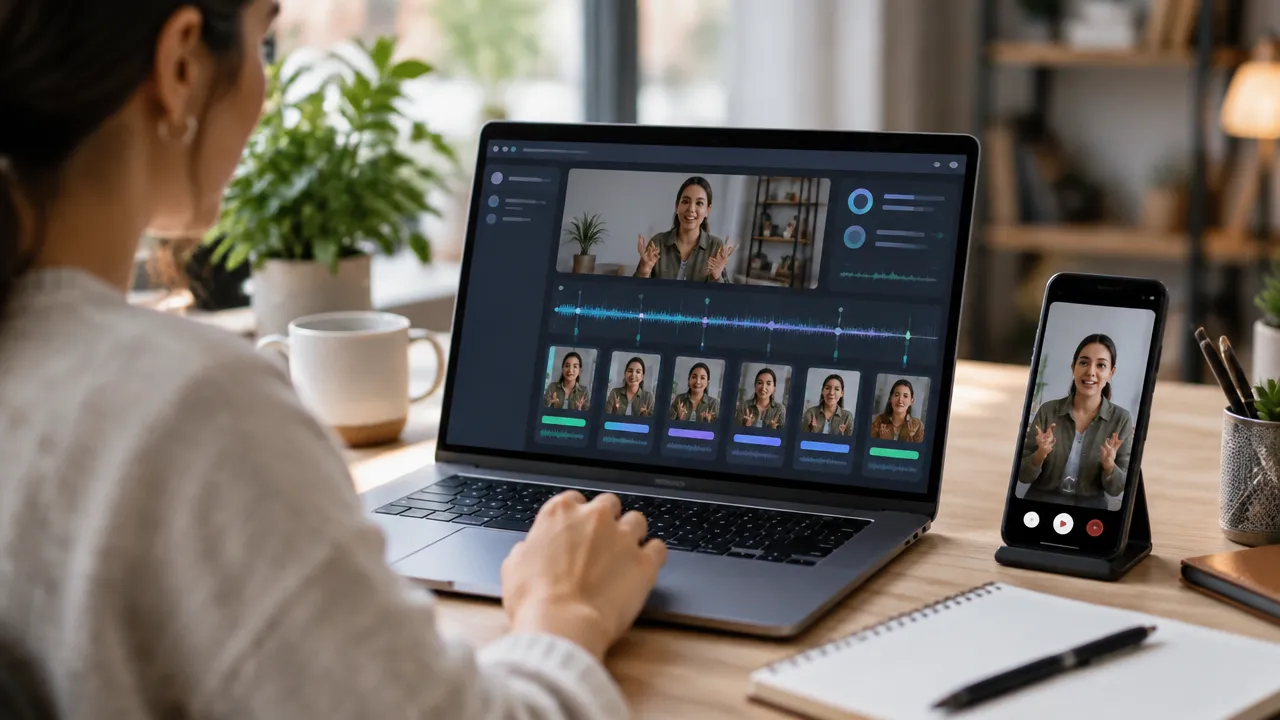
A simple workflow reduces rework: prepare the source, find complete moments, adapt each clip, and check the file before publishing. The sequence works in both a manual editor and a tool that generates automatic suggestions.
- Choose a recording with clear audio. A video with understandable speech facilitates editing and subtitle review. If there is noise, check if the tool offers audio adjustments.
- Define the audience and the subject of the cut. Look for an idea that can be understood without relying on several minutes of introduction. A tip, an answer, or a short story can serve as a narrative unit.
- Locate the promising moments. In manual editing, go through the timeline and mark complete excerpts. With AI, use the suggestions as drafts and open each clip to assess the context.
- Remove leftovers without cutting speech. Adjust the beginning and end to avoid long pauses, but preserve necessary words to understand the idea.
- Adapt the framing. Set the vertical format, typically 9:16, and check if the face and important elements remain visible. Correct the crop if the tool follows the wrong object.
- Generate or review the subtitles. Compare each sentence with the audio, correct names, punctuation, and technical terms, and ensure the text is visible without covering the face.
- Export a test. Watch the final file with and without sound. Check resolution, watermark, cuts, subtitles, and duration before preparing other versions.
This process can result in clips of different durations. Instead of forcing everyone to fit into a fixed number of seconds, it’s worth ending each cut when the idea is complete and the pace remains clear.

Review subtitles, framing, and context before publishing
The final review prevents errors that automation may overlook. Even when an app transcribes speech and centers the person automatically, it’s necessary to check the visual file and audio before publishing.
- Subtitles: correct names, acronyms, and words that the transcription confused. Break long blocks so they can be read during speech.
- Framing: check if the face isn’t cut off and if gestures, products, or slides remain visible.
- Context: watch the beginning and end of the clip. An isolated sentence can change meaning when it loses the previous question or explanation.
- Audio: check volume, noise, and possible abrupt cuts between words.
- Export: check the vertical aspect ratio, file quality, and any watermark or element inserted into the video.
A well-edited cut does not guarantee that the platform will recommend it. The subject, opening, clarity of the message, audience response, and other factors influence performance. The tool’s goal is to facilitate production and review, not to promise reach.
How VDClip can automate steps in the workflow
VDClip is an alternative for those looking to automate parts of production from long videos. Relevant features include highlight identification, subtitle generation, and reframing participants. The platform also informs potential scores, which can help order suggestions but do not predict virality.
The service can be considered by creators, educators, marketing teams, and professionals who need to produce multiple clips from classes, interviews, podcasts, or broadcasts. The review remains essential, especially when the recording involves specific terms, delicate context, or more than one person speaking.
VDClip has listings for Android devices and iPhone on the App Store. The existence of a listing does not mean that all platform features are available in the same way in the app. Before choosing a plan or starting a batch, check the current conditions on the platform itself. This guide does not presume the existence of a free plan.
For teams already producing content in other tools, batch editing, scheduling, and performance analysis features can help organize publication. The choice should consider which steps the service truly executes and which still require manual editing or approval.
How to choose without paying for unnecessary features
The best choice depends on the device, the volume of recordings, and the amount of control desired. It’s not enough to compare if an app is free to install: it’s necessary to check the usage limit, the export mode, and the availability of necessary functions.
- For a few clips edited on mobile: a mobile editor with basic tools can solve the task without setting up an automated workflow.
- To find excerpts in long recordings: test an AI platform with a real video and evaluate if the suggestions save time after review.
- To work only on the phone: confirm that the tool offers the necessary workflow in the app, not just in the browser.
- To avoid unexpected costs: check credits, limits, paid features, watermarks, and renewal conditions.
- To publish frequently: compare batch editing, file organization, scheduling, and analysis, in addition to clip quality.
A short test is usually enough to compare the experience: use the same recording in the considered options, review the result, and note the time spent until export. The most suitable tool will be the one that meets the actual workflow without compromising context, quality, or budget.
Frequently asked questions
Is there a free cutting app for Android and iPhone?
Yes. CapCut offers editing on mobile devices and has versions for Android and iPhone. Some features may require payment or have limits, even when the app allows editing at no cost. Before starting, it’s worth checking which functions, templates, and export options are available in the installed version.
Which app finds cuts automatically in a long video?
AI tools like OpusClip and VDClip can analyze a long recording and suggest short excerpts. The result still needs review: the tool may choose an excerpt without context, cut out an important sentence, or poorly frame the speaker. Automatic selection speeds up the work but does not replace curation.
Does a free app export videos without a watermark?
Not necessarily. A free plan may limit credits, video duration, exports, templates, or AI features. The watermark also depends on the service, the plan, and the elements used in the project. Before editing multiple videos, check the official pricing page and make a test export.
Is it better to cut using the app or the browser?
The app is usually more practical for recording, editing, and publishing on the same phone. The browser can facilitate uploading and analyzing long videos, in addition to providing a larger workspace. Features may vary between versions, so the choice depends on the size of the project and the editing workflow.
Does any app guarantee that a cut will go viral?
No. An app helps find excerpts, subtitle, and adapt the video to a vertical format but does not control audience interest, platform distribution, or timing of publication. A clear, relevant, and well-contextualized cut can improve presentation but does not guarantee views or virality.