It is possible to replace the appearance of a character in a recording using editing tools with artificial intelligence. For this task, Runway offers the Character Swap and Edit Studio features; after editing, VDClip can help transform the video into vertical cuts with subtitles for social media, without replacing the character.
The result depends on the quality of the material, the chosen resource, and the review of each segment. Since resources and costs may change, it’s worth checking the options available in your account before submitting the video.
Key Points for Replacing a Character in Video
Character Swap is aimed at inserting a character into a scene, while Edit Studio uses Aleph to edit existing recordings with instructions.
A clear reference image and a well-lit video help guide the desired appearance.
A prompt may request the preservation of movements, framing, and setting, but AI does not guarantee that all these elements will remain intact.
The free plan announced by Runway includes one-time use credits, and each generation may consume credits. The cost varies according to the model and settings.
After exporting the edit, VDClip can assist with selecting segments, creating vertical cuts, including subtitles, and preparing for publication.
What Features of Runway Are Available and How Much Do They Cost?
As of the documentation consulted on October 21, 2026, Character Swap and Edit Studio appear in the list of Runway Apps. The page describes Character Swap as a way to place a character in a scene, and Edit Studio as a feature that uses Aleph to edit and manipulate existing recordings. Practical availability may depend on account access and the options displayed in the app.
Runway states that the Apps are in the side navigation, where users can select the desired feature. Before generating, check your account’s documentation and interface: the name, available parameters, and cost may change. The official Apps documentation also recommends starting with high-quality inputs and simple instructions.
At the time of consultation, the pricing page announced a free plan with 125 one-time use credits. This does not equate to unlimited generations or an automatic monthly recharge. The same page lists Aleph 2.0 at 140 credits for five seconds; this value serves as a reference for the model, not as a guaranteed price for the entire edit in Edit Studio. Check the estimated cost displayed before processing the video on the current pricing page.
How to Prepare the Video and Reference Image?
A short, well-lit recording with the character visible is usually a more controllable starting point. Before submitting the material, choose a segment that shows the result the user wants to achieve and check if the face or body is obscured by hands, objects, or other people.
Prefer a simple shot: start with one person and a setting without many moving elements.
Check the light: try to avoid very dark areas, strong reflections, and sudden changes in lighting.
Choose a clear reference: use a sharp image of the character, with angles and lighting close to those of the recording, if the feature requests this material.
Observe cuts and occlusions: camera transitions and parts of the body hidden can complicate visual continuity.
Confirm rights: use only images and videos that the person has permission to submit and edit.
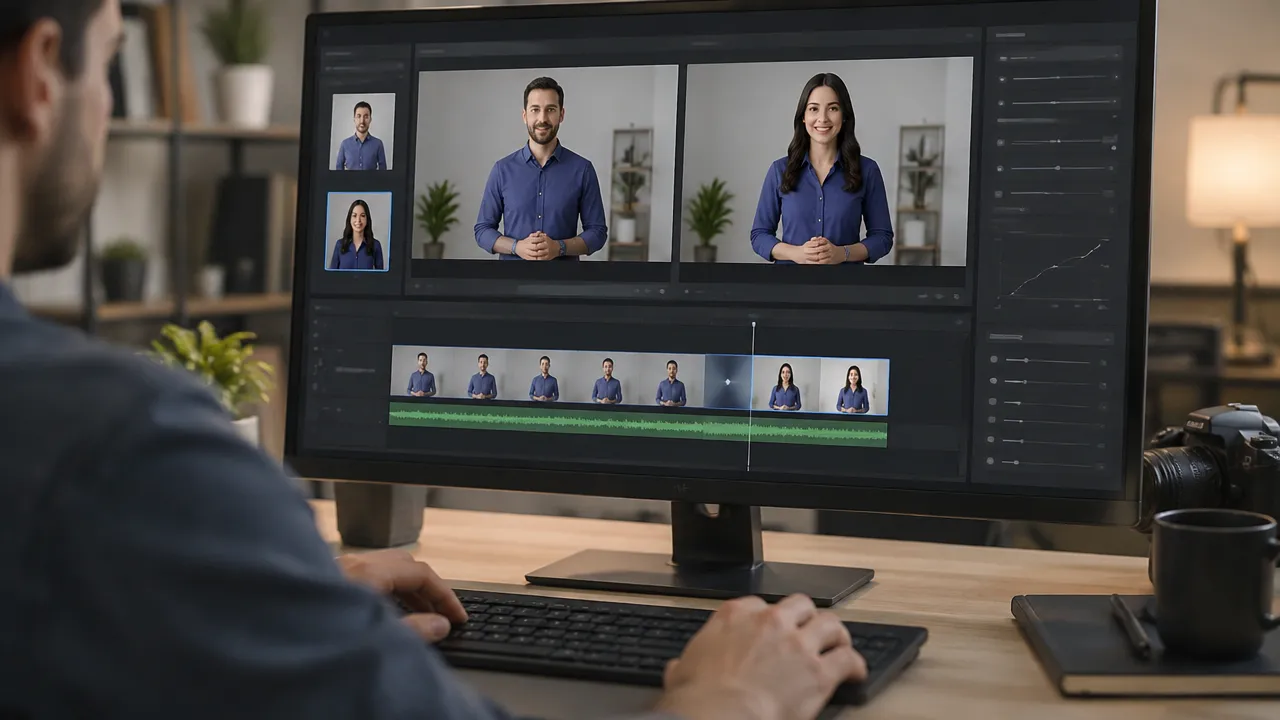
A reference image helps communicate the desired appearance but does not correct issues from the original video. If the character appears facing forward in one scene and in profile in another, for example, the tool may not maintain the same features with the same accuracy. Therefore, a small initial test can prevent wasting credits on a long recording.
How to Replace the Character in Runway?
The process begins with choosing a test segment and the most suitable feature. Then, the user uploads the recording, adds a reference when prompted, describes the change, and reviews the result before exporting.
1. Separate a short segment for testing
Make a copy of the original material and select a short part that contains the most important movement. A test allows observing how the tool handles the face, body, light, and setting before editing the full recording.
2. Upload the video and choose the feature
Open the Apps area in the Runway account and look for Character Swap or Edit Studio. Choose Character Swap when the goal is to place another character in the scene. Edit Studio may be an option when the instruction needs to guide a change in an existing recording using text.
The two features do not necessarily offer the same controls. Read what the interface presents for the specific task and check if it requests a reference image, text, or both.
3. Add a reference if the feature requests it
Use a sharp image, without excessive filters, and with the character clearly visible. To reduce differences, prefer a reference whose pose and direction of the face are compatible with the recording. Do not use a photo of another person without permission.
4. Write an objective instruction
Describe who or what should appear and which elements of the recording should remain. An example of a command in English is: Replace the person with the character in the reference image, preserving the original movements, framing, and setting.
This text expresses the intention but does not guarantee that AI will preserve every movement, frame, or background detail. If the first output strays from the goal, simplify the instruction and change one thing at a time, rather than accumulating incompatible requests.
5. Generate, review, and export
When generation is complete, watch the clip from start to finish. Also review frames where the character turns their face, passes behind an object, or changes position. If deformations appear, try another segment, another reference, or a simpler description, keeping an eye on the cost of each new generation.
What Is the Difference Between Character Swap, Edit Studio, and Act-Two?
Character Swap and Edit Studio support editing an existing scene; Act-Two serves to transfer a performance to a reference character. The table summarizes the difference in purpose and materials described in the documentation.
Feature | Purpose | Inputs to Consider |
|---|---|---|
Character Swap | Place another character in a scene. | Video and, if requested, a visual reference. |
Edit Studio | Edit and manipulate a recording using Aleph and instructions. | Existing video and description of the desired change. |
Act-Two | Transfer movements and expressions from a performance to a character. | Acting video and image or video of the character. |
Act-Two is not just another option to replace someone in the scene. It uses an acting video as input to animate the reference character, potentially transferring movements and expressions. The type of input also affects the outcome: the documentation describes differences between using an image and using a video of the character. The official Act-Two guide explains the materials and preparation care.
What Limitations and Artifacts Need to Be Reviewed?
Visual continuity is one of the most important points to evaluate. Even when the first frame seems convincing, changes in pose, light, or visibility of the face can reveal flaws in subsequent frames.
Lighting: differences between the light of the reference and the scene can make the character appear out of place.
Occlusions: hands, hair, microphones, and objects that pass in front of the body can generate unstable edges or parts that disappear.
Consistency: the face, clothes, and proportions may vary throughout the clip, especially in quick movements.
Movement and framing: the tool may change pose, camera, or background, even if the prompt requests preservation.
Scene details: shadows, contours, and elements close to the character may exhibit flickering or deformation.
To review methodically, compare the output with the original at equivalent moments: start, middle, end, and movements. Also check the audio. A visual swap does not guarantee that speech, lip synchronization, or other sound elements have been altered appropriately.
If the edit is used in professional content, keep the original file and note which segments needed adjustments. This makes it easier to redo the process without confusing the generated version with the original recording.
How to Transform the Edited Recording into Cuts for Social Media?
After completing the swap in Runway, export the video and use VDClip in the selection and social editing stage. VDClip does not replace characters: it can support the work with recordings, from selecting segments to preparing videos for publication.
Export the edit: save the approved version and check if the image and audio are correct.
Upload to VDClip: use the final recording as source material to locate moments that might work as short publications.
Select the segments: take advantage of highlight identification or make a manual selection, depending on the content’s objective.
Prepare the vertical format: adjust the framing so that the character remains visible on mobile screens.
Add subtitles and review: check names, terms, and synchronization before scheduling or publishing the video.
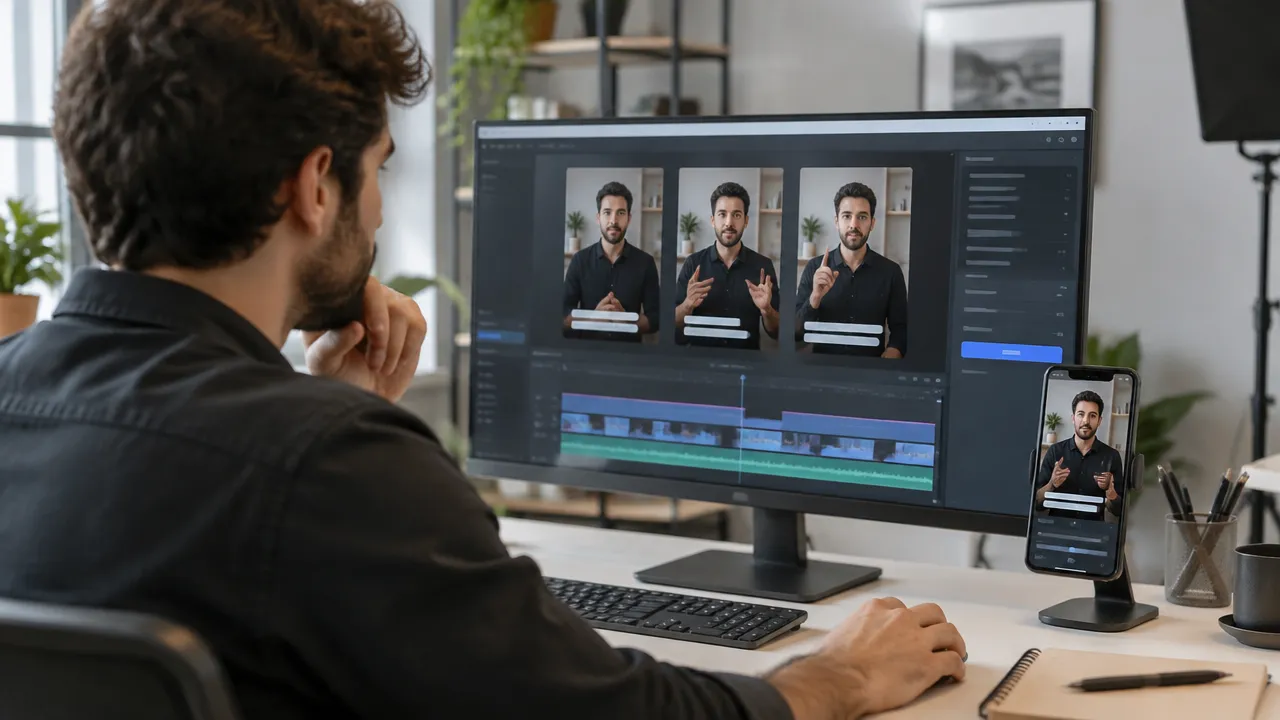
This flow separates two tasks: first, the visual change in Runway; then, the cuts and preparation of social content in VDClip. The separation helps review the main edit before producing multiple short versions for different channels.
What Precautions to Take with Authorization and Transparency?
Before editing a person or character, confirm that there is authorization to use the image and that the rights over the elements of the scene allow for transformation and publication. This includes reference photographs, third-party recordings, and characters protected by usage rights.
Avoid presenting a manipulated scene as an authentic record of something that did not happen, especially when the edit could affect a person’s reputation or mislead the public. A clear indication that the content was altered with AI helps contextualize the publication; it is also important to check the rules of the channel where the video will be shared.
For creators who need to publish short versions of an already edited recording, VDClip can support the selection of segments, vertical format, and subtitles. Users can try VDClip for social cuts in the next step, keeping the character replacement as a separate task in Runway.
Frequently Asked Questions
Can AI replace a person throughout the entire video?
The replacement can alter a person’s face or appearance, but the result varies according to the resource, video, and reference image. Before processing an entire recording, test a short segment and check if the character remains consistent during movements, changes of light, and occlusions.
Is it possible to make the replacement without paying?
Runway announces a free plan with 125 one-time use credits, not a quota that renews every month. Generations consume credits, and paid plans and costs per model may change. Before starting, check the price displayed for the resource and for the selected duration.
What is the difference between Character Swap and Act-Two?
Character Swap and Edit Studio serve to alter characters or elements of an existing recording. Act-Two has another purpose: it transfers movements, expressions, and, depending on the input, speech from an acting video to an image or video of a character. The choice depends on what outcome the creator needs.
Does AI preserve the original movements and setting?
No. A command may ask the AI to preserve movements, framing, and setting, but this does not guarantee fidelity in all frames. Quick changes, obscured parts, cuts, and uneven lighting can cause deformations or visual alterations. Review the entire clip before publishing.
Can I use another person’s image as a reference?
Use images of real people only with appropriate permission and check for rights over characters, photographs, costumes, or other elements used as reference. If the edit could be confused with an authentic recording, inform that there was manipulation with AI and follow the rules applicable to the publishing platform.