Adding subtitles quickly requires three steps: generating an automatic transcription, reviewing the text, and checking the reading in the final format. This flow helps creators, marketing teams, educators, and professionals who repurpose classes, interviews, podcasts, or broadcasts into short videos. Automation speeds up editing, but a simple review avoids errors that change the meaning.
What to do to subtitle a video quickly
- Prepare a file with clear audio and choose the spoken language.
- Generate the transcription and automatic synchronization in an editor.
- Review names, numbers, technical terms, and punctuation.
- Decide whether the subtitles will be embedded in the video or on a separate track.
- Watch the final version on a small screen before publishing.
How to create automatic subtitles in a few steps
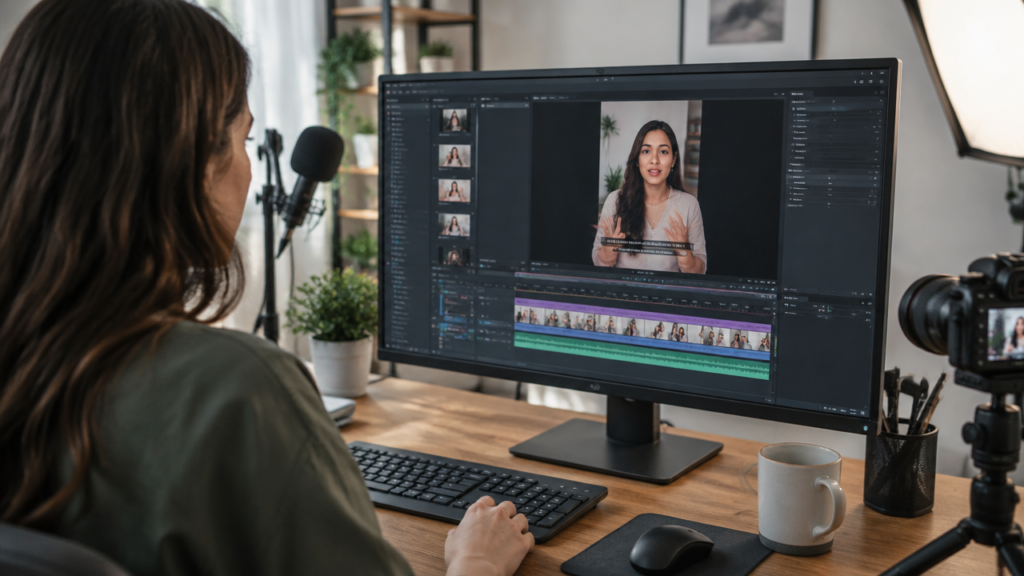
An editor with speech recognition can turn audio into synchronized text without requiring each sentence to be typed manually. The process works best when the video has clear voice, little noise, and a correctly selected language.
- Import the file. Use the final video or the recording that will be edited.
- Choose the language. Select the language that people speak, not the language desired for a translation.
- Generate the transcription. Wait for the tool to identify the speech and distribute the text over time.
- Review the sequence. Correct words and adjust sections that appear too early or too late.
- Customize and check. Adjust the style and watch the result in the size it will be published.
This method creates a first version, not a guaranteed perfect transcription. Noise, simultaneous speech, accents, acronyms, and uncommon names can produce errors. Therefore, the review remains part of the flow, even when the generation takes little time.
Prepare the audio to reduce corrections
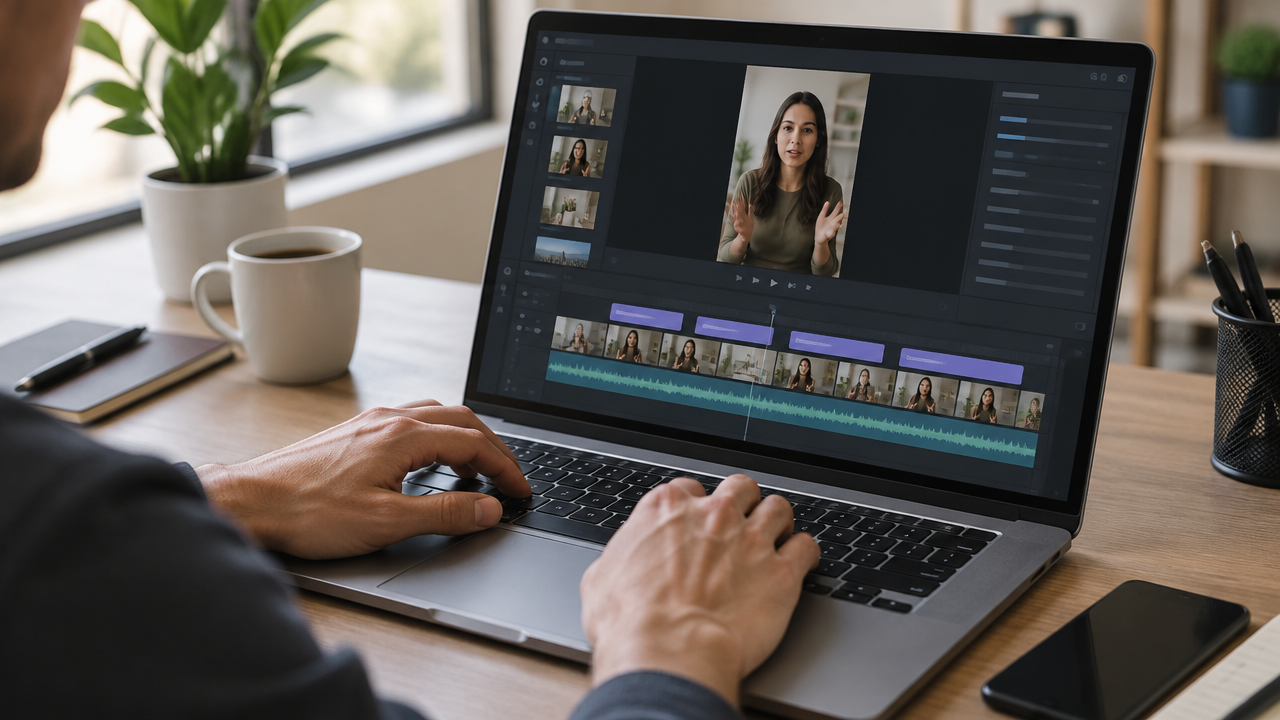
Understandable audio reduces rework because speech recognition depends on what it can distinguish in the recording. Before sending the video, check if the voice is clearer than the background music and if continuous noises do not obscure words.
If the recording already exists, it does not need to be automatically redone. Still, it may be useful to reduce competing sounds in the edit and listen to sections where the speech seems muffled. In interviews and conversations, also check if each participant is audible when another person speaks.
- Use a microphone close to the speaker when possible.
- Avoid loud music during important dialogues or instructions.
- Check the names of people, products, and places before generating the transcription.
- If there is more than one language, identify which language each section is in.
For long recordings, testing a short sample helps to determine if the language and audio quality are adequate before processing all the material. This check is especially useful in classes, orientation calls, and broadcasts with remote participants.
Review words and synchronization before publishing
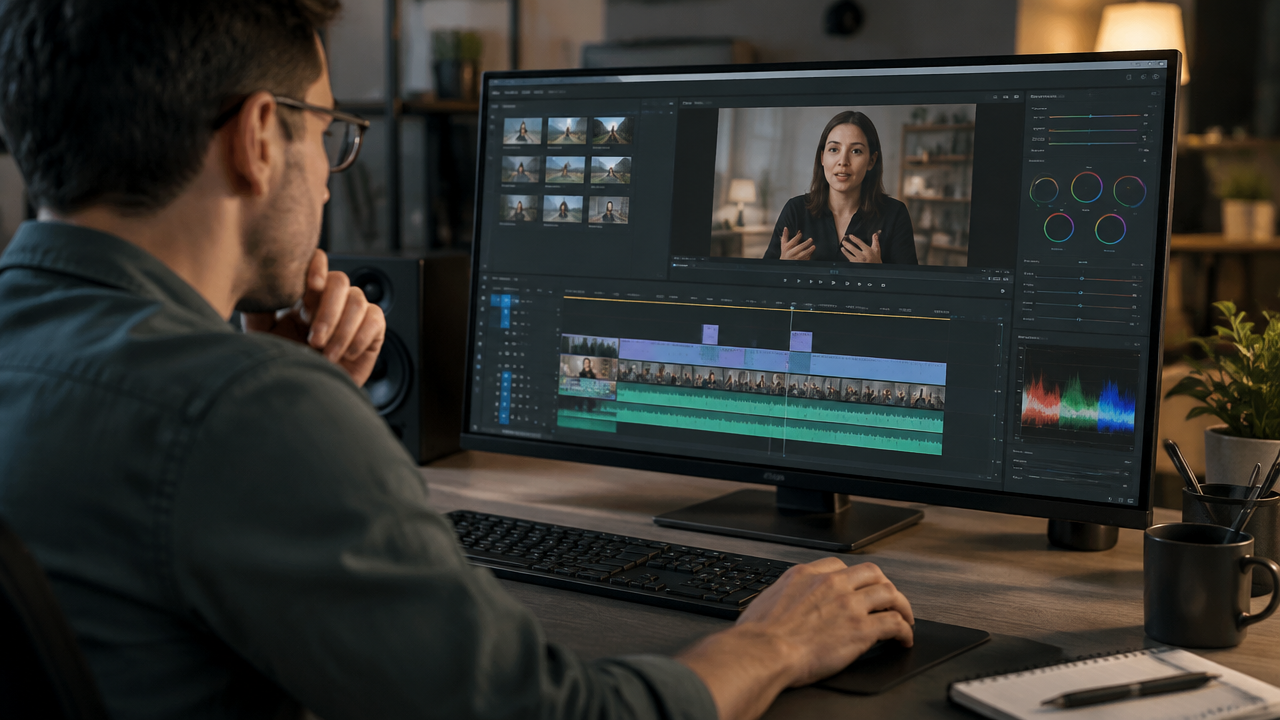
Manual review is the step that transforms the automatic transcription into reliable subtitles. Read the text while watching the video because a correctly written sentence can still appear at the wrong moment or stay on screen too long.
Start with errors that change the meaning: numbers, negations, proper names, instructions, and specific industry terms. Then adjust punctuation and segmentation. For example, an explanation like “the visit starts in the outdoor area” should not appear with “the visit starts” in one frame and leave “in the outdoor area” isolated much later.
- Compare the words with the audio, not just with the context.
- Split long sentences into units that can be read at a glance.
- Avoid separating articles or prepositions from the section they complete.
- Check for speaker changes and the entry or exit of each line.
- Review the beginning and end of the video, where cuts may remove words.
In videos with important visual information, confirm that the text does not cover graphs, demonstrations, signs, or subtitles already present in the image. A quick test on a mobile phone often reveals overlaps that go unnoticed on the editing screen.
Choose between embedded text and subtitle track
The choice depends on how the video will be distributed and who needs to control the display of the text. Embedded subtitles become part of the image and remain visible during playback. A separate track, when accepted by the file and the destination, can be turned on or off by the viewer.
| Format | When it can be useful | Point of attention |
|---|---|---|
| Embedded in the video | When it is important to keep the text visible in any reproduction. | The text cannot be turned off and must respect the safe areas of the image. |
| Separate track | When the player allows choosing whether the subtitles will be displayed. | It is necessary to confirm support, language, and synchronization at the destination. |
The W3C guidelines distinguish open captions, which are always visible, from closed captions, which can be controlled by the player. The choice does not eliminate the need to review content and timing. If accessibility is part of the goal, the guidelines on captions for pre-recorded media explain the importance of presenting speech and relevant sounds.
What style makes subtitles more legible?
Legible subtitles use clear text, sufficient contrast, and few words per entry. A sans-serif and simple font is usually easy to recognize on small screens, but the size needs to be tested on the video itself, not just on the editing monitor.
In vertical videos, keep the text away from the edges and controls that may appear in the publishing interface. Position the lines without covering faces, demonstrated objects, or important information. A shadow, outline, or discreet banner can help when the background changes significantly between scenes.
- Prefer one or two short lines at a time.
- Maintain consistent size and alignment throughout the video.
- Use colors that distinguish from the background in light and dark scenes.
- Avoid animations that make the text blink or hard to read.
- Play the video on a phone to check the real font size.
There is no one-size-fits-all setting for all videos. A tutorial with demonstrations may require a different position than a close-up interview. The rule of thumb is to preserve readability without hiding what helps to understand the content.
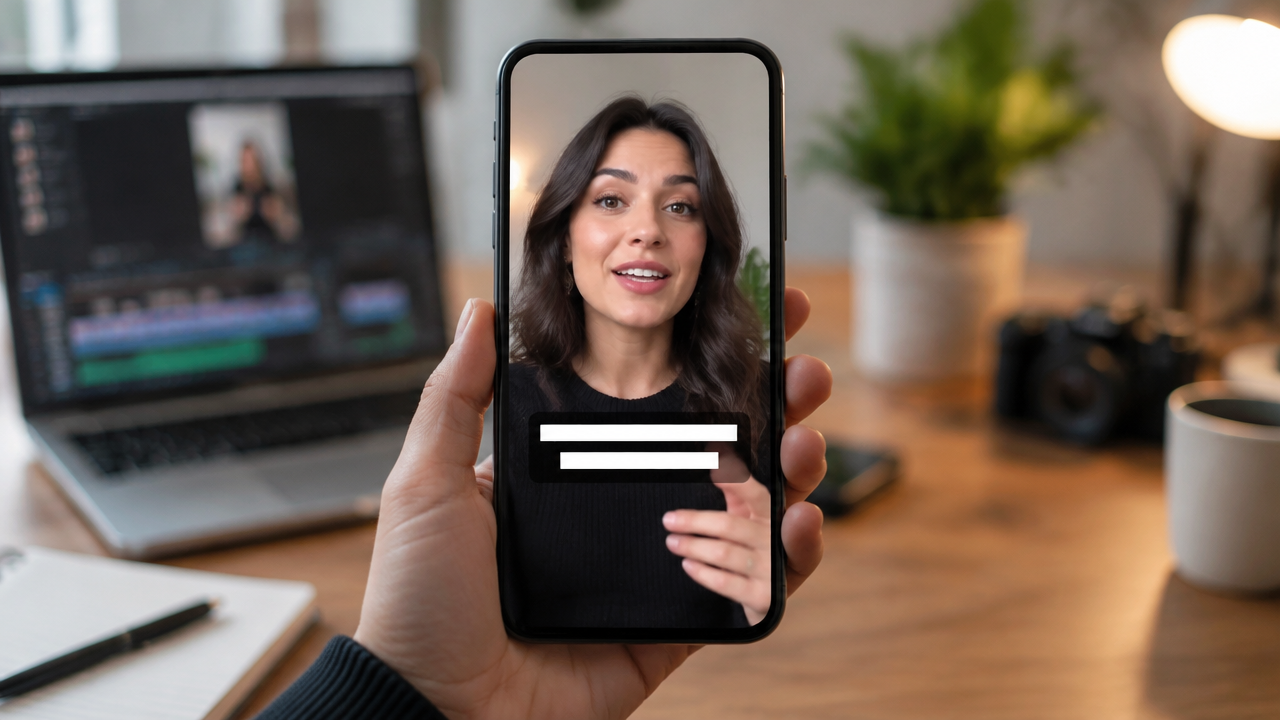
How to subtitle long recordings and create clips
When the source is a class, interview, call, or extensive broadcast, the flow gains speed if editing and clip preparation happen in the same process. Instead of subtitling each section from the beginning, the team can locate relevant moments, cut short versions, and review the text already applied to each video.
VDClip was developed for this type of repurposing. The platform uses artificial intelligence to identify highlights in long recordings, create vertical clips, and add subtitles in over 30 languages. It also offers speaker framing, silence removal, and in-browser editing, features that can reduce repetitive tasks before the final review.
- Upload the recording and select the sections that make sense for the audience.
- Generate the clips and apply subtitles in the desired language.
- Review the text and framing of each section.
- Use the brand’s visual kit if the content needs a consistent presentation.
- Prepare the publication or scheduling after the review.
Automation is more useful as a first step than as a substitute for editorial review. Before publishing multiple cuts of the same recording, check if each preserves the context, does not start in the middle of a word, and keeps the subtitles legible.
How to subtitle in another language without losing meaning
Transcribing and translating are different tasks. Transcription records what was spoken in the original language; translation converts that speech into another language. Before starting, confirm what result is necessary and check if the tool offers the corresponding function.
After translation, review idiomatic expressions, names, measurements, and cultural references. A literal translation can produce strange sentences or alter an instruction. If the video is for a specific audience, ask someone fluent in the target language to check important sections.
It is also important to keep the subtitle language consistent with the published version. The W3C guidance relates the language of the textual content to the spoken language in the media, unless the goal is to present a translation. For videos intended for more than one audience, separate files or versions can facilitate the choice and review of each language.
Accessible subtitles include important sounds
A useful subtitle may need to communicate more than the spoken words. Laughter, alarms, or other sounds can explain a reaction or indicate an essential event. When relevant to understand the video, describing them helps those who cannot hear the audio.
The W3C explains that subtitles can identify who is speaking and represent important information conveyed by non-verbal sounds. The reference also warns against covering relevant parts of the image with text. The W3C guidelines for accessible media help teams consider subtitles, transcriptions, and other aspects of accessibility during production.
This does not mean that every noise needs to become text. The editorial criterion is to include what changes the understanding: for example, indicating “[laughter]” when the reaction matters or “[alarm sounds]” when the sound explains an action. In a short video, objective descriptions avoid overwhelming the screen.
Final checklist to speed up publication
A brief checklist makes the review repeatable, especially when several people edit content or when the team publishes cuts in sequence.
- Does the chosen language correspond to the audio or desired translation?
- Have names, numbers, acronyms, and technical terms been checked?
- Do the sentences appear synchronized and remain on screen long enough for reading?
- Does the text avoid covering faces, demonstrations, and visual information?
- Does the chosen format work in the publication destination?
- Has the video been watched on a small screen before being scheduled?
With this process, automatic generation saves typing, and review protects clarity. The result is a video that is easier to follow, even when the audio cannot be played, without relying on manual editing word for word.
Frequently asked questions
How to add automatic subtitles to a video?
To create automatic subtitles, import the video into a speech recognition editor, select the spoken language, and generate the synchronized transcription. Then, correct names, technical terms, and punctuation, adjust the division of sentences, and decide whether the text will be embedded in the image or available as a separate track.
What is the ideal font for subtitles?
A simple, sans-serif, familiar font usually works well, as long as it is legible at a cellphone size. Contrast with the background also matters: use light text with an outline or discreet banner when necessary. Check the result in the vertical format before publishing.
How to place subtitles on the video screen?
To make the text always visible, embed the subtitles in the video during editing. Position them within the safe area, without covering faces, demonstrations, or important information. If the file and destination allow, a separate subtitle track can also be a more flexible option.
How to change the subtitle to Portuguese?
Select Portuguese as the language of the transcription or translation in the editor and review the result before publishing. If the audio is in another language, confirm whether the tool translates the content or just transcribes what was said. Review expressions, proper names, and technical terms.
What to include in the subtitles of a video?
Include the dialogue and, when important to understand the video, sounds like laughter, music, or alerts. Identify who is speaking when this is not clear from the image. The transcription should preserve the original meaning, without cutting caveats or turning a sentence into a different assertion.